Version control
An estimate is never priced once. Version control is where a revision is started, kept apart from the one already issued, and eventually declared to be the one the project runs on.
What a version is
A version is a complete elemental estimate: its own sections, elements, components, quantities, rates and build-ups. Creating one always creates an elemental bill to hold that structure, even when the version starts empty.
Versions do not share anything. Repricing a component in one leaves every other version exactly as it was — which is the point. An estimate issued to a client in March has to keep saying what it said in March, however much the April revision moves.
The area schedule belongs to a version too. The rates do not: they are the project's, and every version prices from the same copy.
Reading the list
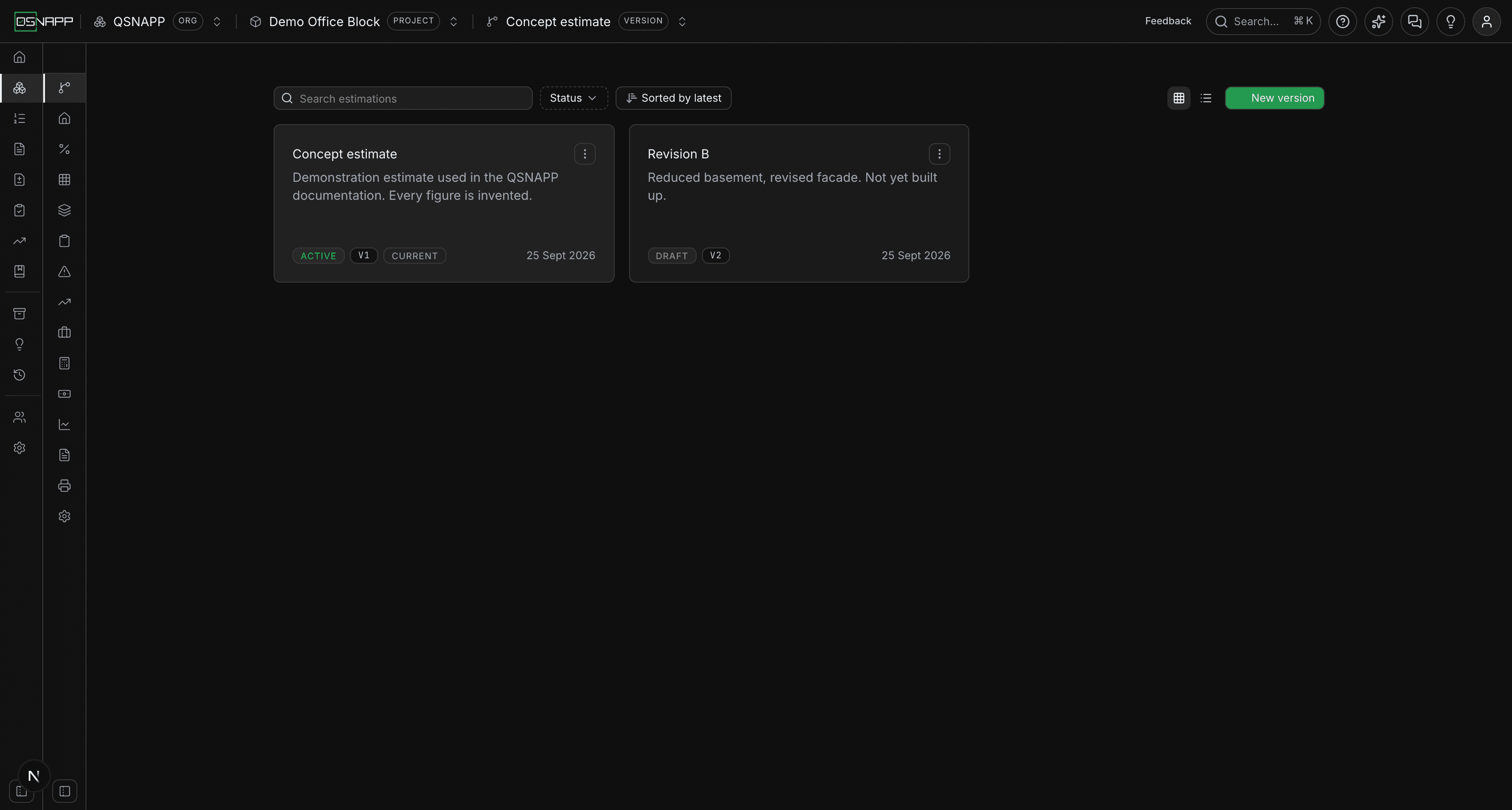
Each card carries four things worth reading:
- The name and description— what this revision is, in your own words. “Reduced basement, revised facade” is worth more later than “Rev B”.
- The version code — the short reference, always prefixed
v. Type2.1and it is stored asv2.1. - The status —
activeordraft. - When it was last touched.
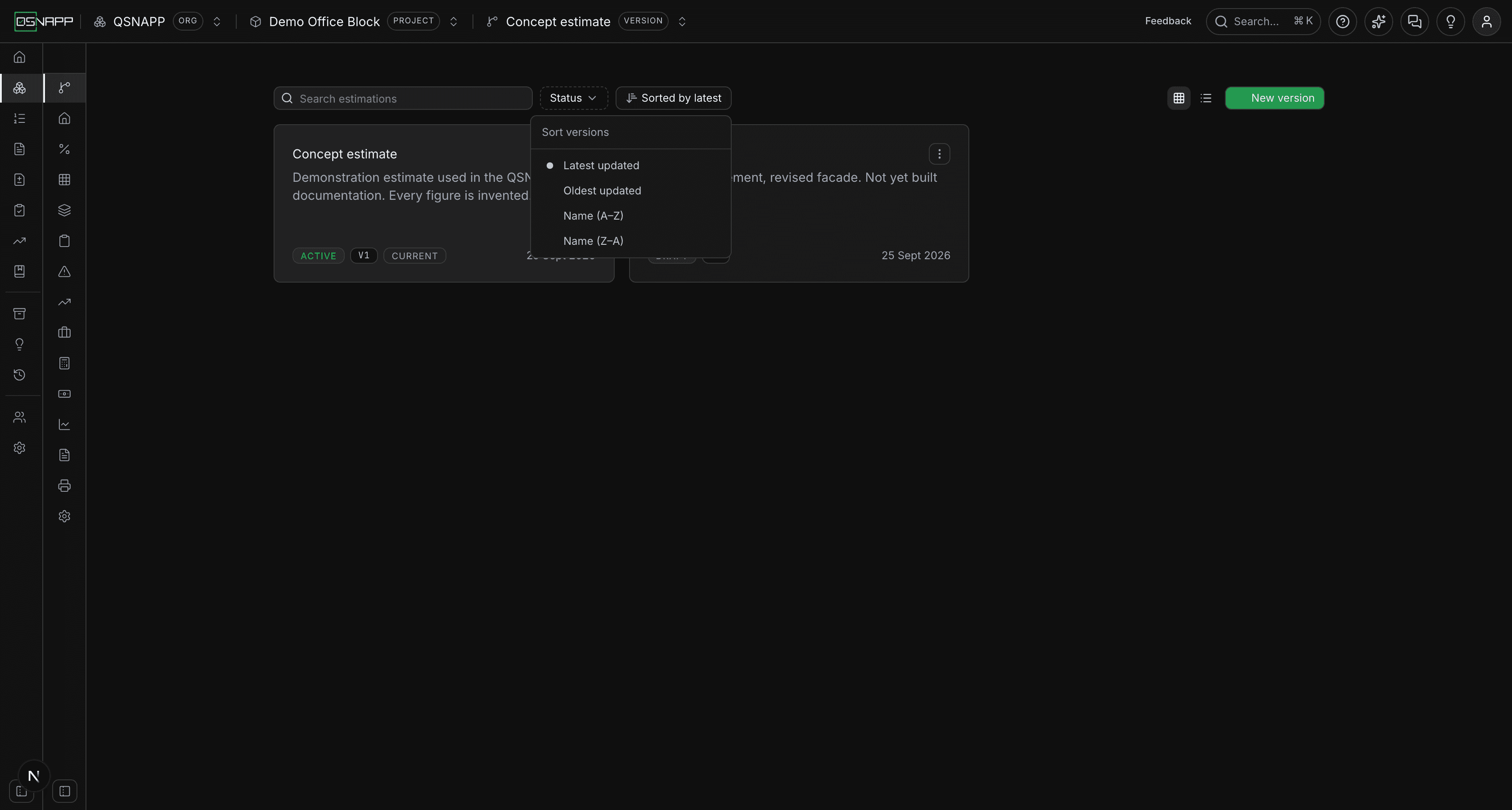
Search matches names and descriptions. Status filters to drafts or active. The sort control orders by when a version was last updated or by name.
Active, and the one you are looking at
These are two different things, and the difference catches people out.
Activeis the project's answer to “which estimate is this project run on?”. There is at most one, it is the same for everybody, and the project overview and cash flow read it. You set it deliberately with Set as active.
The version you are looking atis chosen by clicking a card, and it decides what every other tab in Estimates shows you. It is remembered in your own browser only — a colleague opening the same project may be looking at a different version, and nothing is wrong. Editing a version's name or description does not change which version is active.
Creating a version
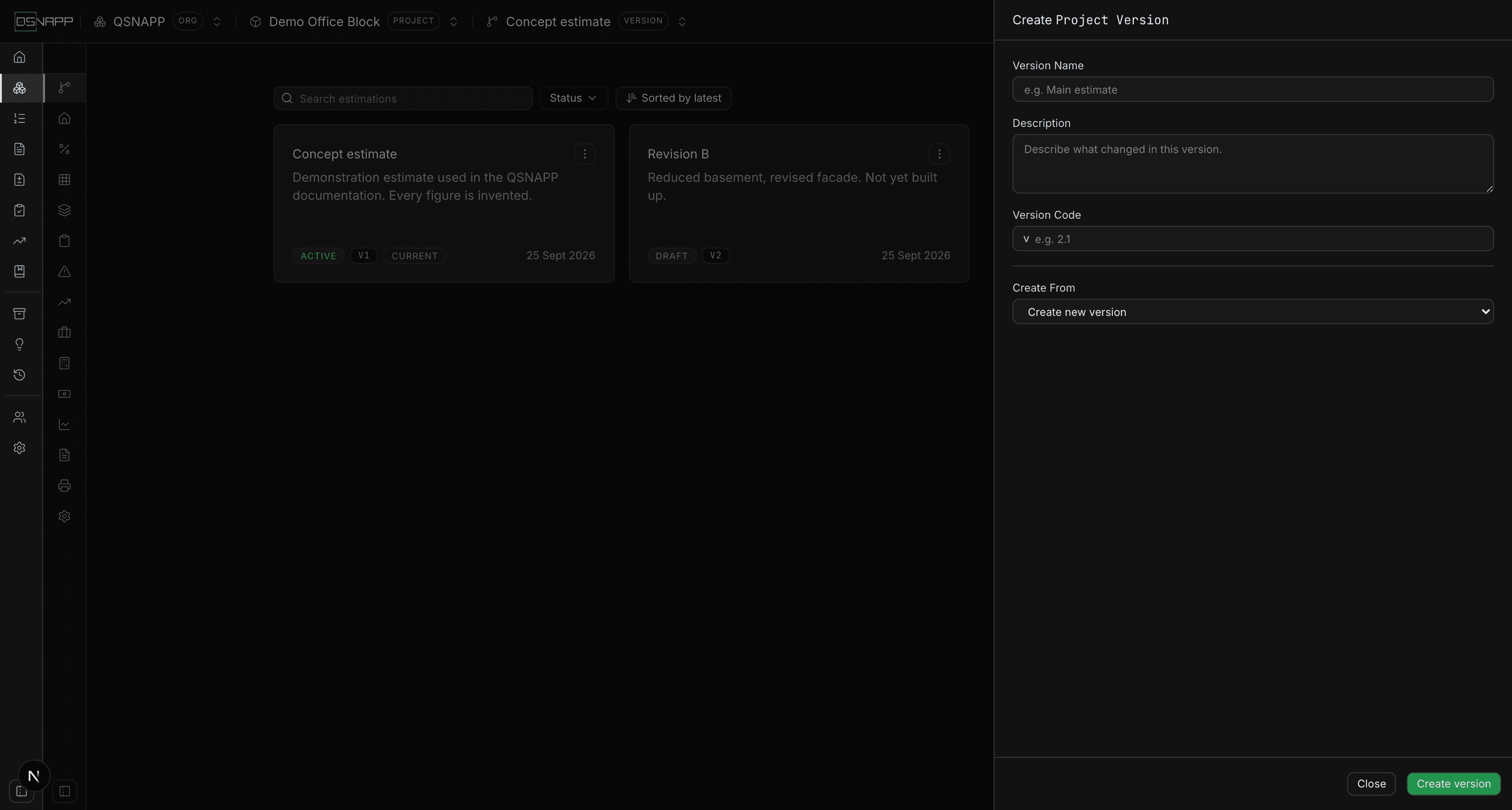
New version opens the panel. Name and version code are required; neither has to be unique, though two versions both called v1.0 will be hard to talk about later. A new version is always created as a draft.
What it starts from
Create From is fixed once the version exists — it cannot be changed by editing afterwards. The choices are:
- Create new version — an empty structure. You add the sections, elements and components yourself.
- Copy from global elemental— the platform's AAQS Elemental Guide 2016 structure. This is the usual starting point for a first estimate.
- Copy from organisational elemental— your practice's own library, with whatever wording and components you have standardised on.
- Copy existing version — another version of this same project. This is how a revision starts.
- Import from file — a completed WinQS import. Only imports that have finished appear; run one under Migrations first.
What a copy carries
This is the most important thing on the page, because “copy” promises more than it delivers.
A copy carries the structure and the wording: sections, elements, components, their units, what has to be measured, the composition text and the taking-off notes.
A copy does not carry the numbers. Quantities, rates, totals, the values you gave your constants, and the composition build-ups all start empty — including when you copy an existing, fully priced version. Links to the bill of quantities are not carried either.
Constants are the one exception, and only halfway: after the copy, each component is given the constants its taking-off note asks for, declared and waiting to be stated. The figures you had entered are not brought across.
Copying an existing version also offers Bring the area schedule and measurement links, ticked to start. With it, the copy carries three more things: the area schedulewhole — columns, figures and formulas, because the areas are the version's assumptions as much as its structure; the locations each component is measured in, without the quantities typed there; and the measurements linked to the schedule, pointed at the copied schedule. So a measurement that followed the schedule arrives with its figure, while one that was typed arrives empty — the same rule as everything else in a copy.
A WinQS import is the exception to all of the above — quantities and rates come from the imported file.
So a revision starts as a structure to be repriced, not as a priced estimate to be adjusted. If what you want is last month's estimate with three rates changed, you are going to be re-entering more than three numbers.
Choosing sections and elements
Every source except “Create new version” asks which parts of it to bring. Tick sections and elements in the Include tree.
You must choose at least one section and at least one element. A section with no elements under it cannot be brought on its own, and a version that has a bill but no sections cannot be used as a source at all — the picker will report that it found nothing.
Editing a version
Edit changes the name, the description and the version code. It does not change the status, the source, or which sections were included — those are settled when the version is created. Renaming the active version leaves it active.
Duplicating
Duplicateopens the create panel already pointed at that version, with “(copy)” on the name. It is the same thing as choosing Copy existing version by hand, so the same rule applies: you get the structure, not the numbers. The version code is left blank for you to fill in.
Promoting a version
Set as active makes this the version the project is run on, and demotes whichever version was active before. It happens in one step, so the project is never left without an active version. The item reads Already active on the version that currently holds it.
Deleting a version
Delete versionis at the foot of the edit panel and asks you to type the version's name exactly. That is deliberate: deleting a version takes its whole elemental bill with it — every section, element, component, constant and build-up — and there is no undo.