Rates
Rates are what the estimate is priced from. QSNAPP holds them in three libraries — the platform's, your organisation's, and the copy this project works off — and a rate only ever moves downwards between them.
Three libraries, not one
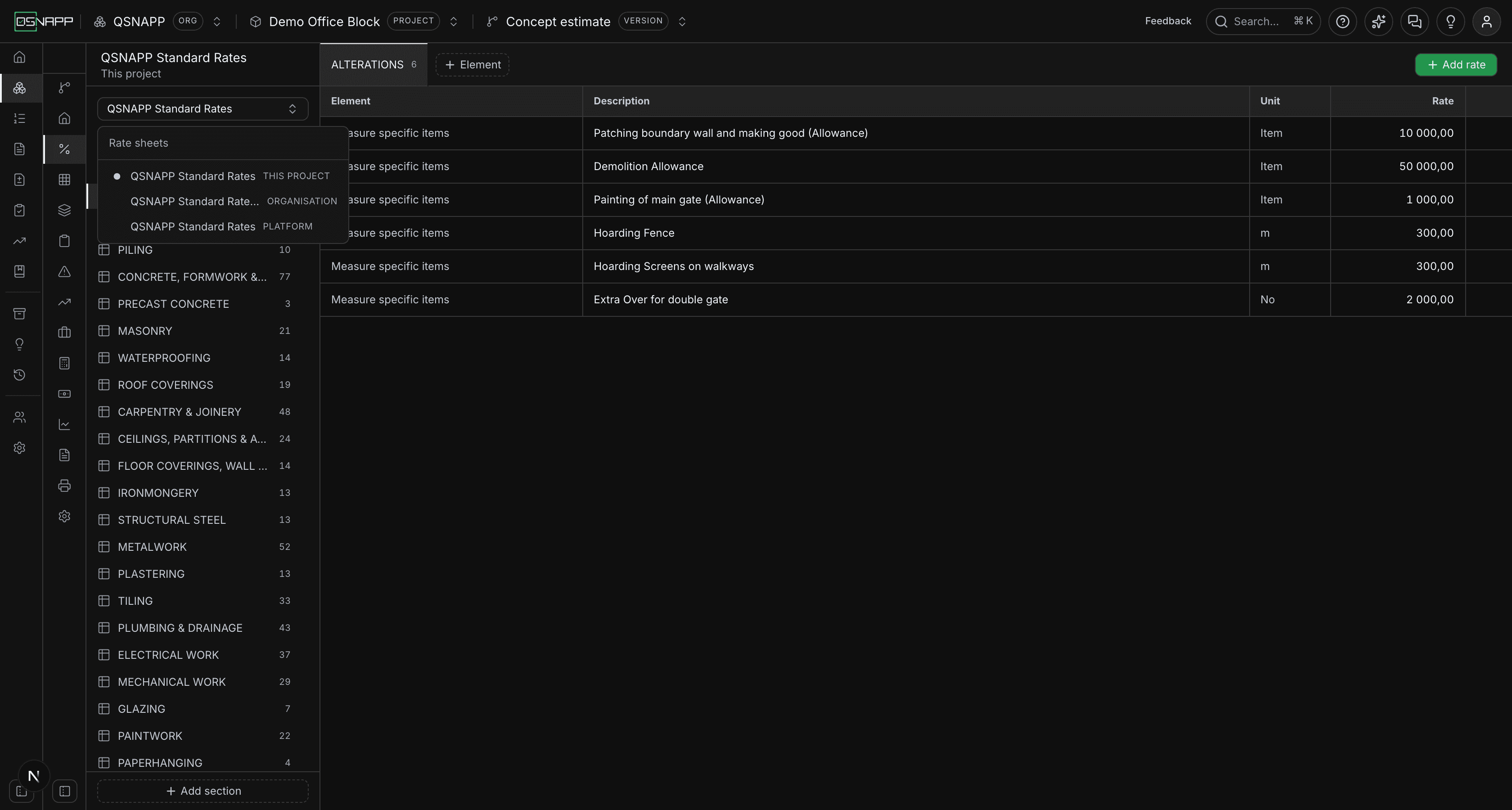
- Platform — the rates QSNAPP ships, currently one sheet of 603 rates across 26 sections. Read-only everywhere; only the platform changes them.
- Organisation — your practice's own rates, made by copying the platform sheet and then editing it. Maintained in the Library, not here.
- This project — the copy this project prices from. This is the only one you can change from inside a project.
Copies go platform → organisation and platform-or-organisation → project. Nothing copies upward: a rate you negotiate on one project does not write itself back into the library that every other project reads.
The picker lists the project's own sheets first, then the organisation's, then the platform's, and opens on the first of them — so a project that has taken a copy opens on its copy, and one that has not opens on the library it would copy from.
Why a project copies
Because a library that changed underneath a signed-off estimate would be worse than useless. Your practice revising its rates in June must not silently reprice the estimate you issued in March. Taking a copy fixes the numbers this project is working to at the moment you take it.
It is the same reason the elemental structure is copied into a version rather than referenced.
How a rate sheet is arranged
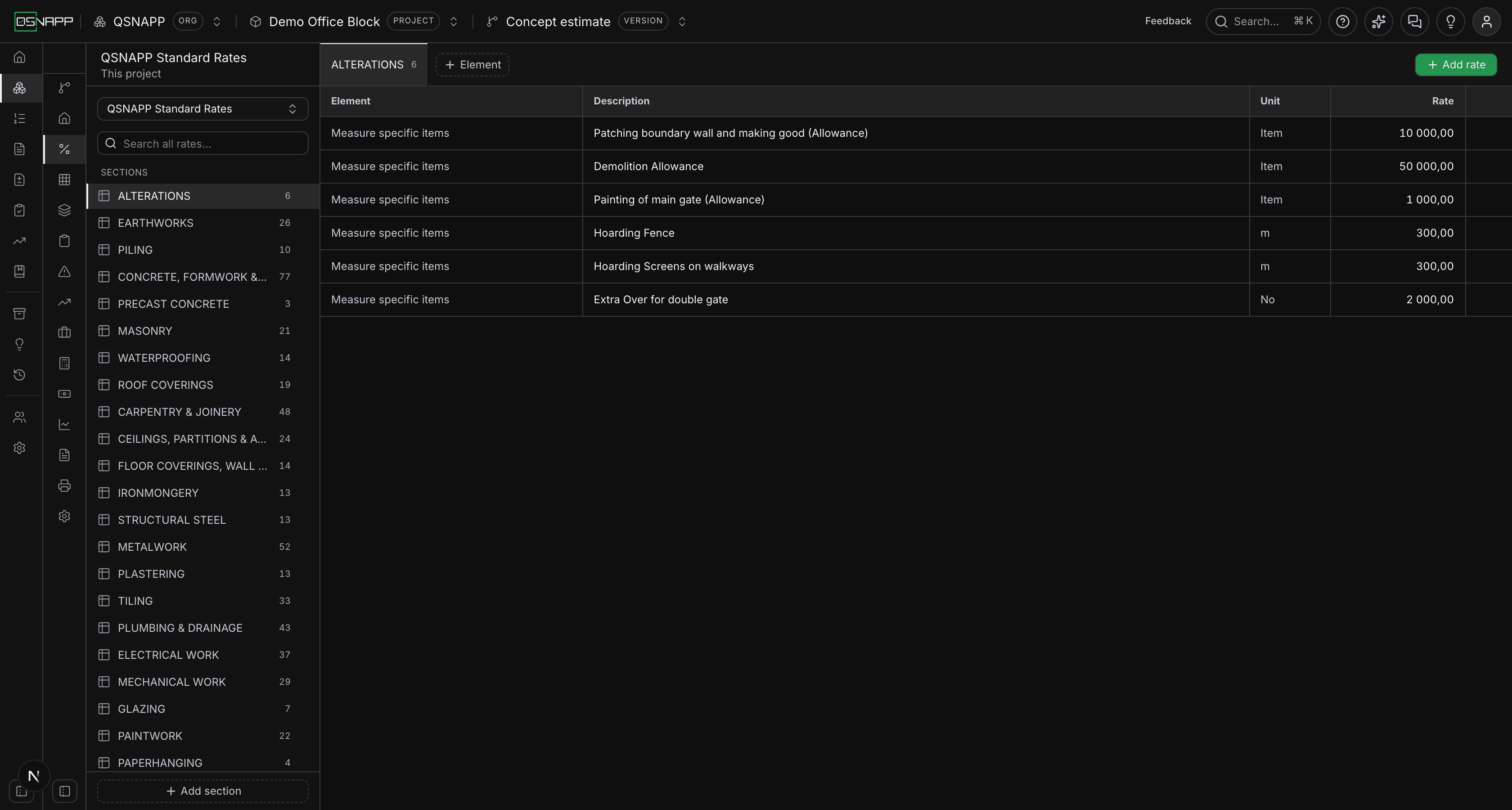
Four levels, and the two in the middle are grouping rather than pricing:
- Sheet — a whole rate book, such as “QSNAPP Standard Rates”.
- Section — a work section:
EARTHWORKS,MASONRY,TILING. Listed down the rail with a count of the rates inside. - Element — a grouping within a section, such as “Site clearance”. An element may have no name at all, in which case it shows as Unnamed group — that is normal, not a fault. Several sections price everything directly under the section with no element named.
- Rate — one priced line: a description, a unit, and the rate itself.
Choosing a section shows every rate in it. Elements open as tabs across the top, so you can move between two of them without losing your place; the section itself stays as the first tab and cannot be closed. The tabs belong to the section you are in — choose another section in the rail and its own open elements come back, not the last section's.
Reading a rate
Not stated is not zero
A rate that has not been agreed yet reads Not stated, in grey. It is not shown as 0,00, and the difference matters: a zero is a decision that this work costs nothing, and it would price it at nothing in every total downstream.
A genuine zero is shown as 0,00 like any other number. The platform sheet has both — the PILING section is priced at zero throughout, under a heading saying the items are examples.
Leaving the rate box empty stores “not stated”. Typing something that is not a number is refused rather than quietly stored as blank.
Percentages
A rate whose unit is % is held as its multiplier and displayed as the percentage it is: 2,5% is stored as 0.025 and shown as 2,50%. When you edit one, the box asks for the multiplier — enter 0.025, not 2.5. The drawer says so beneath the field.
Units
Units come from the platform's own list — m2, m, No, m3, Item, Hrs, kg, t, Sets, Pairs, % — the same list the elemental estimate and the bill of quantities use. That is deliberate: a rate stated in a unit the rest of the platform does not recognise could not be used against a measured quantity.
A rate may also have no unit at all; the grid shows — for it, and the drawer offers the same dash at the top of the unit list.
Numbers are written in South African convention: a space groups thousands and a comma is the decimal separator, so twenty-one thousand rand reads 21 000,00.
Typing a rate
The rate box reads what you type the same way the grid writes it. A single comma is the decimal point, so 1,5 is one and a half — and 1,000 is one, not a thousand, which the grid then shows as 1,00 so you can see what was stored. Spaces are ignored, which is what lets a figure copied out of the grid be pasted back in. A rate typed in the other convention, 1,234.56, is read correctly too: whichever separator comes last is the decimal one.
Anything that is not a number — 12abc, 1.2.3— is refused with a message, and the drawer stays open. It is not stored as blank, because a rate that quietly became “not stated” would price the work at nothing while the estimate went on adding up.
Taking a copy
On a platform or organisation sheet the header shows a read only badge and a Copy into this project button. Copying brings the whole sheet — every section, element and rate — and it is not quick: six hundred rates take a moment. The button reads Copying... while it works, and a message says how many rates arrived.
The copy keeps the source sheet's name, and remembers which library sheet it was taken from. Every rate in it is now the project's own: changing one changes nothing in the library, and the library changing later changes nothing here.
Copying twice gives you two sheets. There is nothing stopping it, so check the picker before pressing it a second time.
Changing a rate
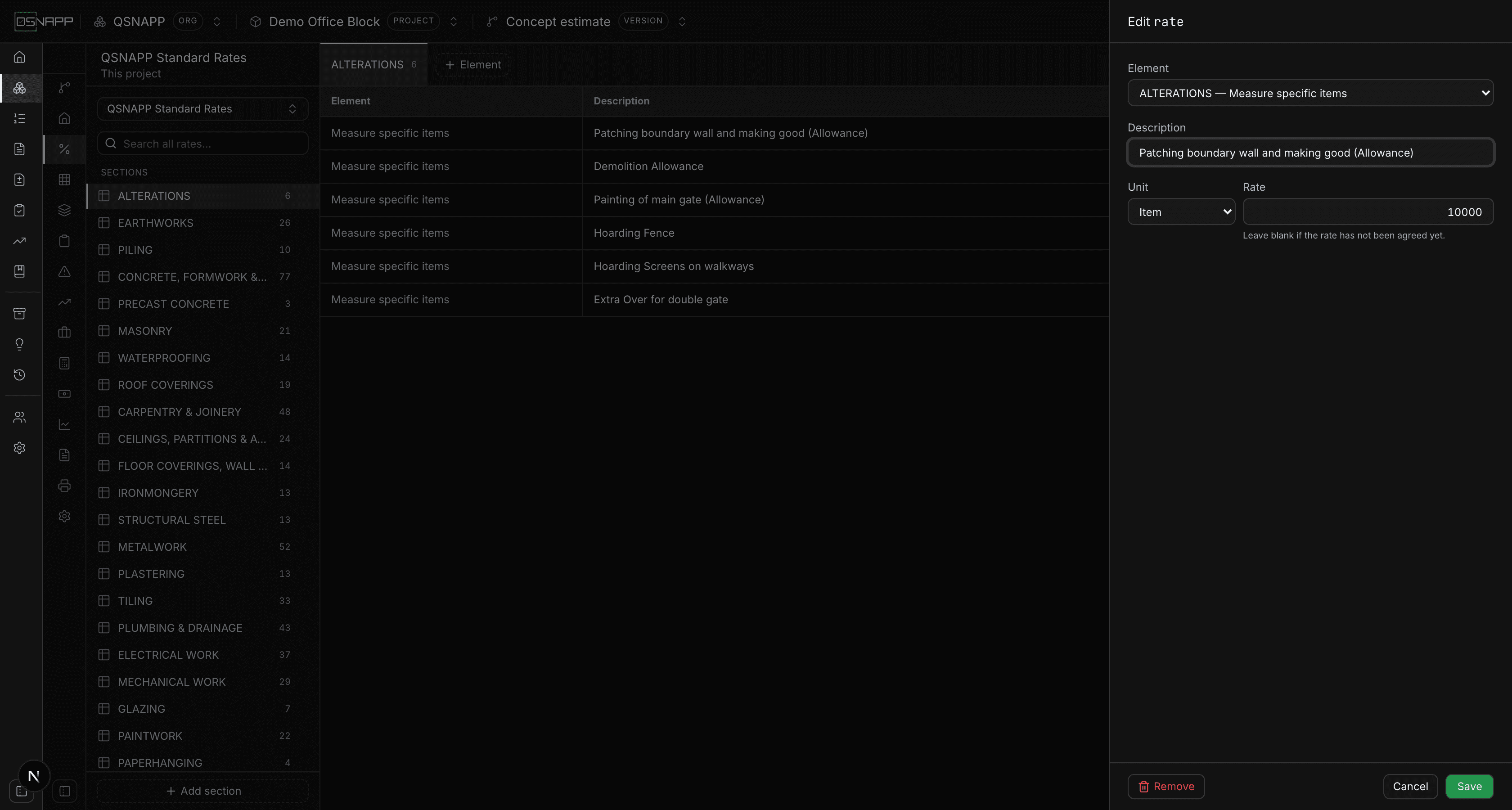
On the project's own sheet, the pencil at the end of a row opens the drawer, and Add rateadds one to the section you are in — under the element tab that is open, or the section's first element when none is. The drawer asks for four things: which element it sits under, what it is, its unit, and the rate. The element list covers the whole sheet, written as SECTION — element, so a rate can be moved to another section from here.
A rate needs a description and an element; the rate itself and the unit may be left blank. Enter in the rate box saves. Remove, at the foot of the drawer, deletes the rate without asking.
Add rate is greyed out in a section that has no elements yet. A rate always sits under an element, even an unnamed one, so add the element first — see below.
The grid itself is never an input. Rates are shown formatted, which is what keeps a column of them readable — 10 000,00 rather than 10000.
Sections and elements
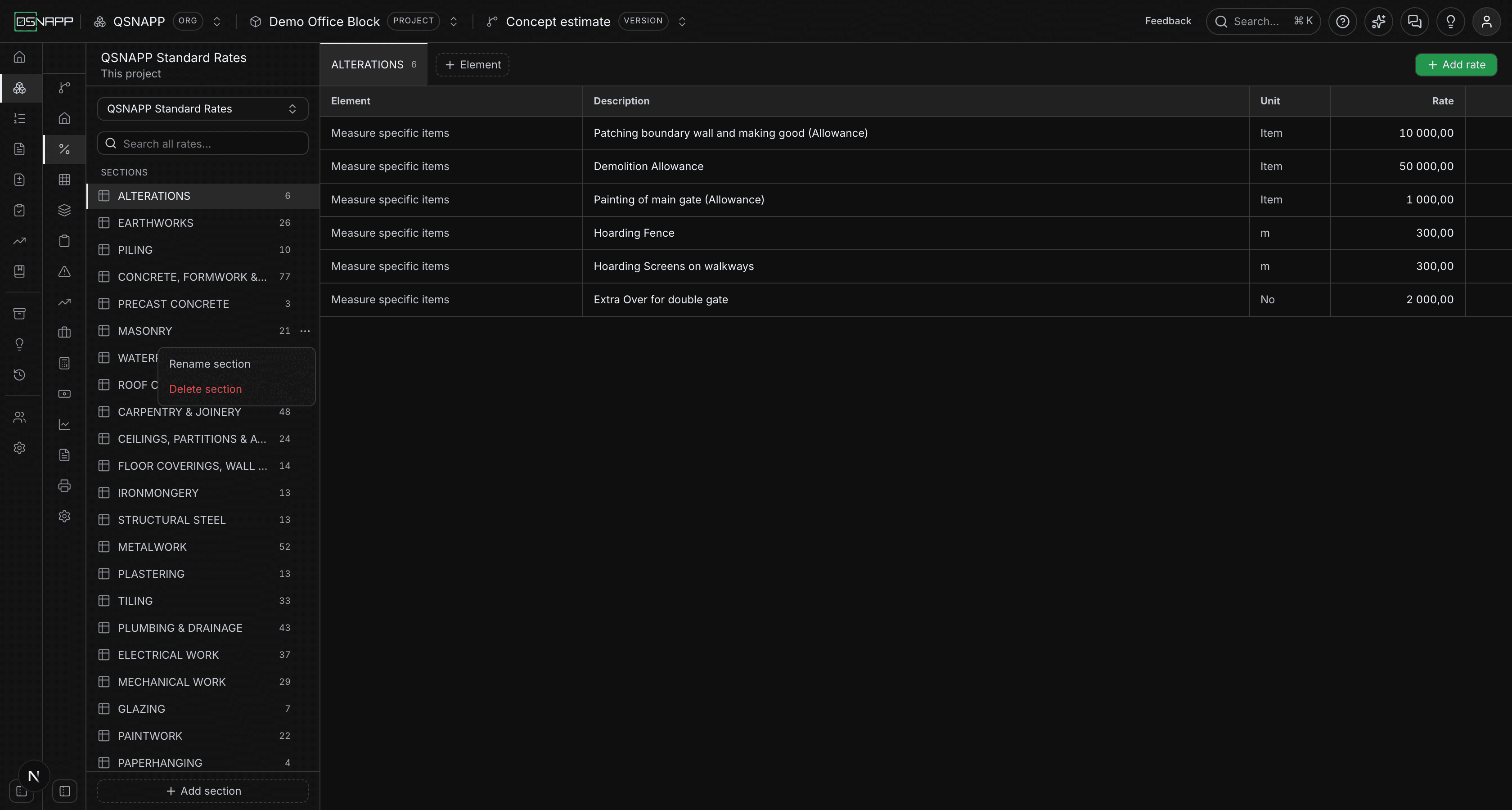
Add section is at the foot of the rail. The Element dropdown above the grid does two things: Add new elementasks for a name and which section it belongs to, and the list beneath opens any of the current section's elements as a tab. Leave an element's name blank and it becomes an Unnamed group, which is how the platform sheet keeps ungrouped rates.
A section's menu — the dots that appear when you point at its row — renames or deletes it. Deleting asks first, and says what goes with it: a section takes its elements and all their rates. An element, once added, cannot be renamed or deleted from this screen; its rates can be moved out of it one at a time through the drawer's element list.
Searching
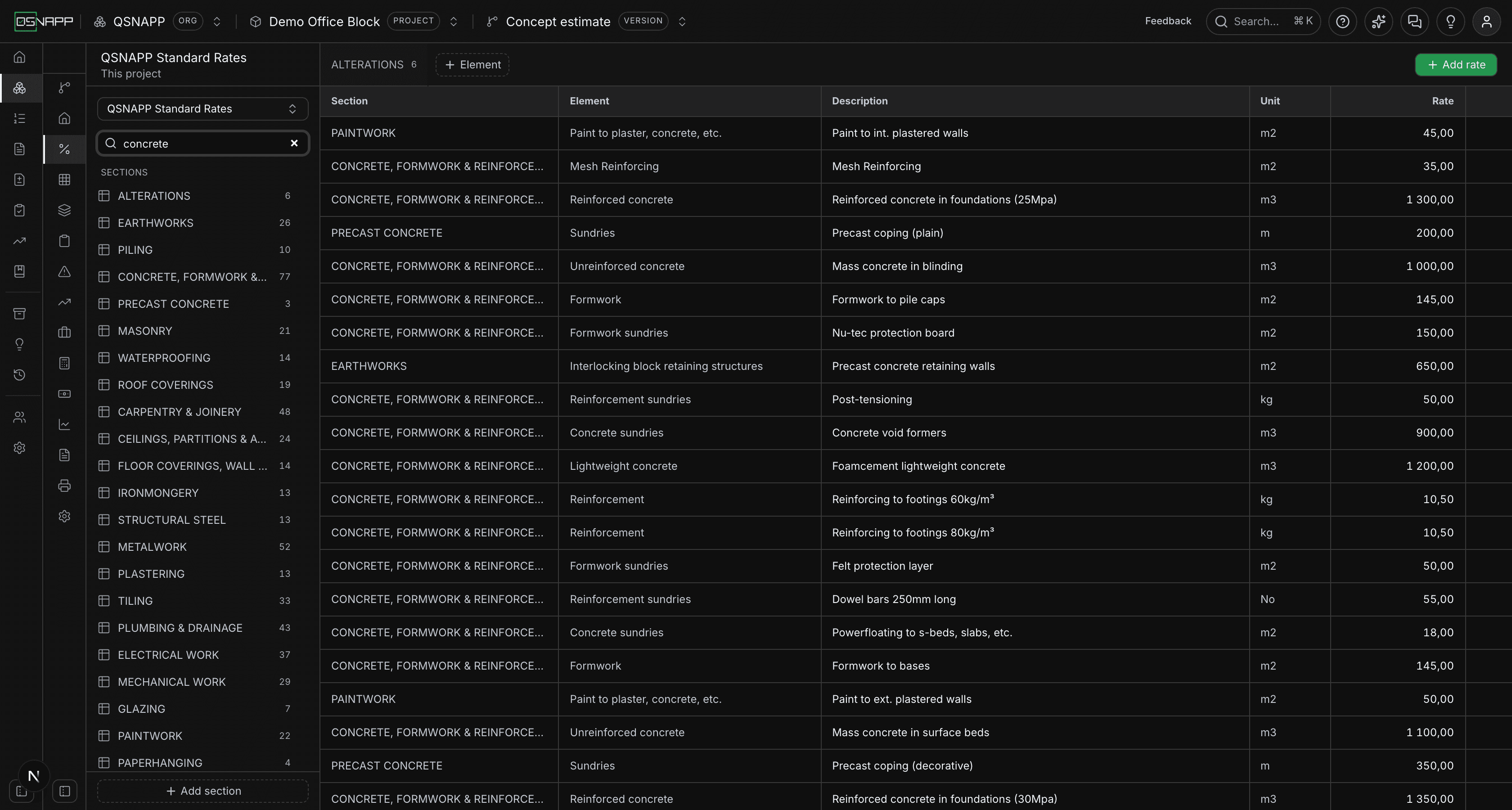
The search box looks across the whole sheet, not just the section you are in — matching descriptions, section names and element names. While a search is running the grid shows a Section column so you can see where each hit came from, and no section is highlighted in the rail. Choosing a section, opening an element or switching sheets clears it. A search that matches nothing says so, with the words you typed.
Rates used in the estimate
A rate on this sheet can be linked to places in the elemental breakdown — a composition line, or a component priced directly. See Elemental breakdown for how a link is made.
When you change a rate that something is priced from, saving it asks what should happen to those places. Everything is ticked to begin with, because bringing the estimate in line with the sheet is the ordinary case; untick the exceptions.
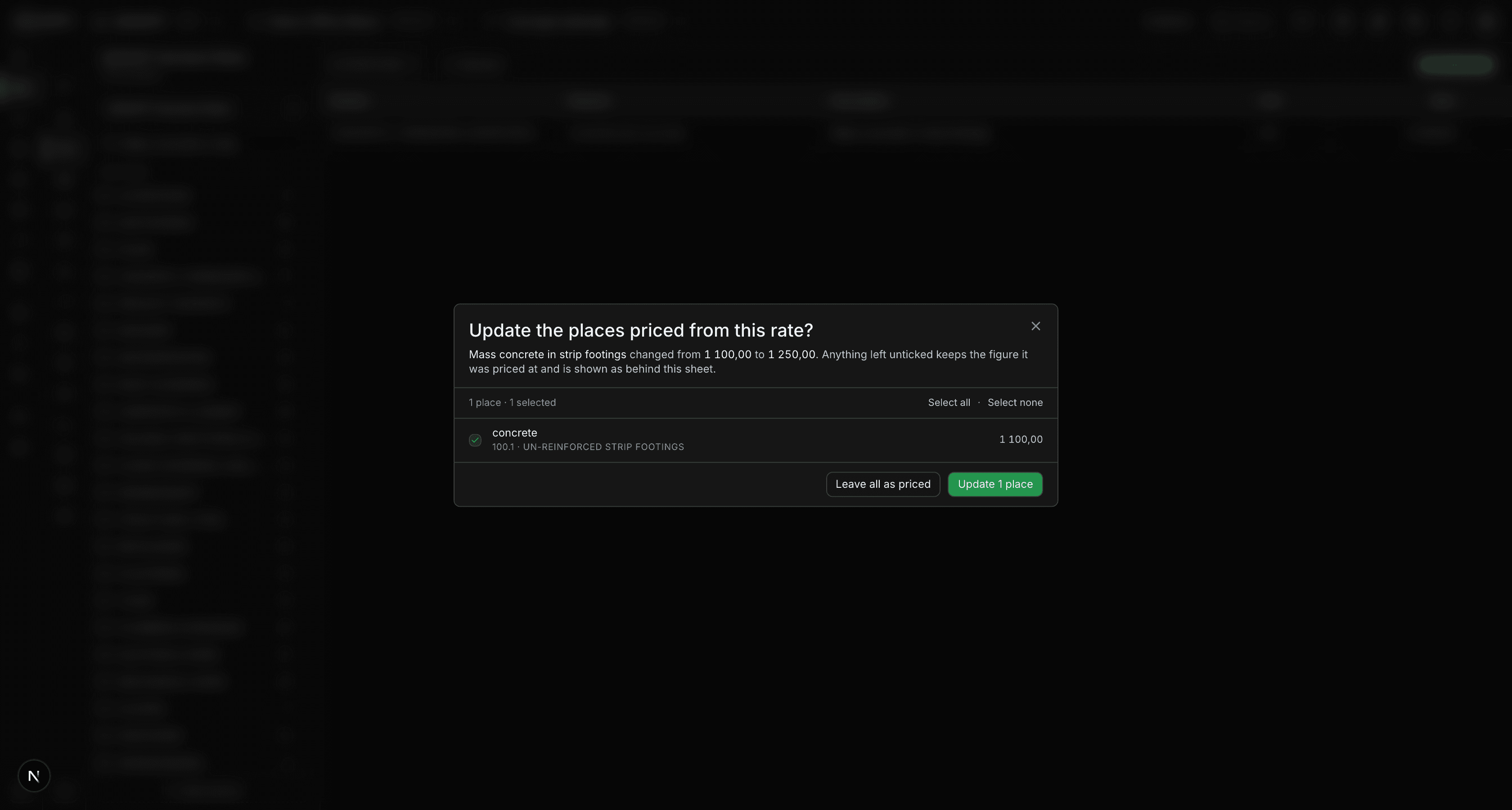
The reason this is asked rather than simply applied is that a rate is edited for reasons that do not always apply backwards. A rate corrected because it was captured wrong should reach everything priced from it. A rate raised because a supplier raised theirs should not silently reprice a section already agreed with a client. Only you know which just happened.
Anything left unticked keeps the figure it was priced at, and is shown from then on as behind this sheet — an amber rate with a warning mark on the elemental screen, reading Priced at R1 100,00. The sheet now says R1 250,00.That disagreement is deliberate and visible, which is the point: the estimate says “priced at the old rate” rather than quietly differing from the sheet. See When the sheet moves.
Leave all as pricedchanges nothing in the estimate; the rate on the sheet is saved either way. Updating a composition line also recalculates that line's total and re-adds the component above it, so a rate and the figures built from it never disagree.
Reading the dialog
The heading says what changed and from what to what. Beneath it, a count — 3 places · 3 selected — with Select all and Select nonebeside it. Each row names the place: a composition line by its label, with the component's code and description under it; a component priced directly by its description, marked Component rate. The figure at the right is what that place is priced at today.
A place already holding the new figure is marked Current rather than hidden. It is still listed because the count is what tells you how far a change reaches, and “used in 3 places” when it is used in 4 would be a lie of omission.
The update button says how many it will move — Update 2 places — and is greyed out when nothing is ticked; Leave all as priced is the way to close the dialog without changing the estimate. Afterwards a message says what happened, including how many were left as priced and are now shown as behind the sheet.
A composition line that is updated takes the sheet's figure as a figure. If its rate cell held a formula, the formula is cleared — a rate taken from the sheet is a number, and keeping the old arithmetic would make the cell redisplay it and the next save store it as the truth.
When it does not ask
- A rate that nothing is linked to saves without asking.
- Changing a rate's description, unit or element without changing the figure does not ask either. The places priced from it are priced at a number, and the number has not moved.
- Deleting a rate that is linked does not reprice anything. The link dissolves and every place keeps its figure, because withdrawing a rate from the sheet is not a reason to price signed work at nothing.
- If the places priced from a rate cannot be looked up — a connection drops mid-save — the rate is still saved, and a message says the linked places were not checked and are unchanged. That is the same outcome as declining, so nothing is silently half-done.
Where else a rate is used
Only the project's own sheets can be linked to. When a composition line or a component is priced from the sheet on the elemental screen, the lookup it opens is this sheet in the order it is written, grouped under each rate's section and element — because “Extra over for double gate” appears in more than one section and the description alone does not say which. It can be browsed section by section as well as searched. See Linking a rate.
The sheet can also be printed. The estimate report has a Ratessection, off by default, that lists the project's sheet in the order it is written — section, element, description, unit, rate — with options to print only the active sheet and to print the section and element headings.
Nothing else in the estimate reads the rate sheet. Preliminaries, contingencies, escalation and fees work from the priced elements, not from the sheet those elements were priced from.
Who can change what
Editing a project's rates needs permission to update the project. Without it the rates are still readable — the sheets, the sections and every rate — but the buttons that would change them are not shown, including Copy into this project. The screen asks the database the same question a save would, so it cannot offer a button the save would then refuse.
The organisation's library is separate: changing it needs permission to manage the organisation, which owners and admins hold. A member without it sees the organisation sheet as read-only and is told so. In the Library, Copy to my organisation takes a platform sheet into the organisation under the same name with (copy) added, and needs the same permission.
The platform library is read-only for everyone.
An organisation whose trial has ended is read-only throughout, and that includes its rate sheets and every project's copy of them. The rates stay readable; changes are refused until the subscription is in place.