Professional fees
The consultants appointed on the project, and what each of them will cost. A fee is worked out on a base the estimate already knows, split across the stages of the appointment, and carried into the total project cost. The quantity surveyor's own fee can be taken off the ASAQS scale rather than typed.
What the tab is for
Everything before this tab prices the building. This one prices the people: the architect, the engineers, the project manager, the quantity surveyor. Their fees are a percentage of something — of the works, of the works with preliminaries, of the escalated final cost — so the tab does not ask you to type a fee. It asks what the fee is based on and what percentage applies, and works the figure out from there, so that when the elemental breakdown is repriced the fees follow it.
Each consultant is a schedule of stages — inception, concept, design, documentation, construction, close-out — with a percentage and an amount per stage. The stage amounts add up to the consultant's fee, and the fees add up to the figure the Total project cost tab adds into the estimated building cost.
Consultants belong to one estimate version. Copying a version brings its structure, as Version control describes; it does not bring the consultants, so a new version starts with none.
Reading the screen
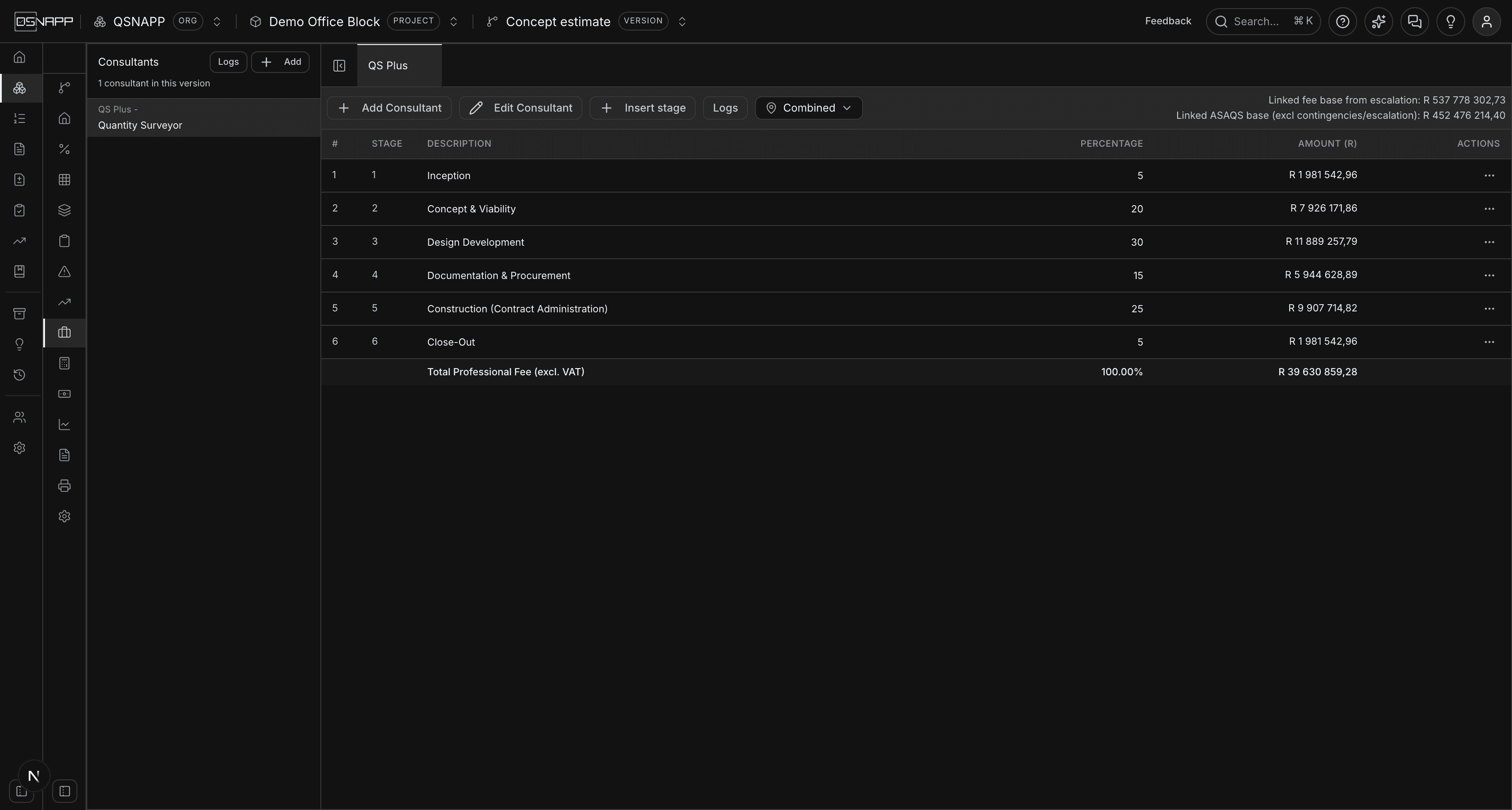
The left rail lists the consultants in this version, each by name and by type, with a count at the top. Choosing one opens it as a tab across the top; more than one can be open, and a tab closes from the cross that appears when you point at it. The panel toggle at the far left of the tab strip puts the rail away when the table needs the width.
The toolbar carries:
- Save changes — appears only when a stage has been edited and not yet saved. See Saving.
- Add Consultant and Edit Consultant — both open a drawer on the right. Edit works on the consultant whose tab is open.
- Insert stage — adds a stage to the open consultant.
- Logs — the change history of the open consultant. The Logs at the top of the rail is the same thing across every consultant.
- A place picker reading Combined — only when the estimate is measured in places. See Reading a fee by place.
- Two figures at the right: Linked fee base from escalation and Linked ASAQS base (excl contingencies/escalation). These are the two bases a linked consultant can be charged on, worked out afresh every time the tab opens. See Linked.
The stage table
One row per stage of the open consultant:
| Column | What it holds |
|---|---|
# | The row's position in the table. |
Stage | The stage number. Rows are sorted by it, so renumbering a stage moves it. |
Description | The stage's name. Typed in place. |
Percentage | Typed in place. On a standard consultant, a percentage of the fee base; on an ASAQS consultant, this stage's share of the fee. The two methods read this column differently, and the sections below say how. |
Amount (R) | What the stage comes to. Not editable — it is worked out from the percentage. |
Actions | A menu with Edit and Remove. |
The foot of the table reads Total Professional Fee (excl. VAT): the percentages added up, and the amounts added up. The percentage total is shown in red when it is not 100. That check is written for the ASAQS split, where the stages divide one fee and must come to the whole of it; on a standard consultant the percentages are shares of the base rather than of the fee, so the total there is usually well under 100 and red is not a fault.
Adding a consultant
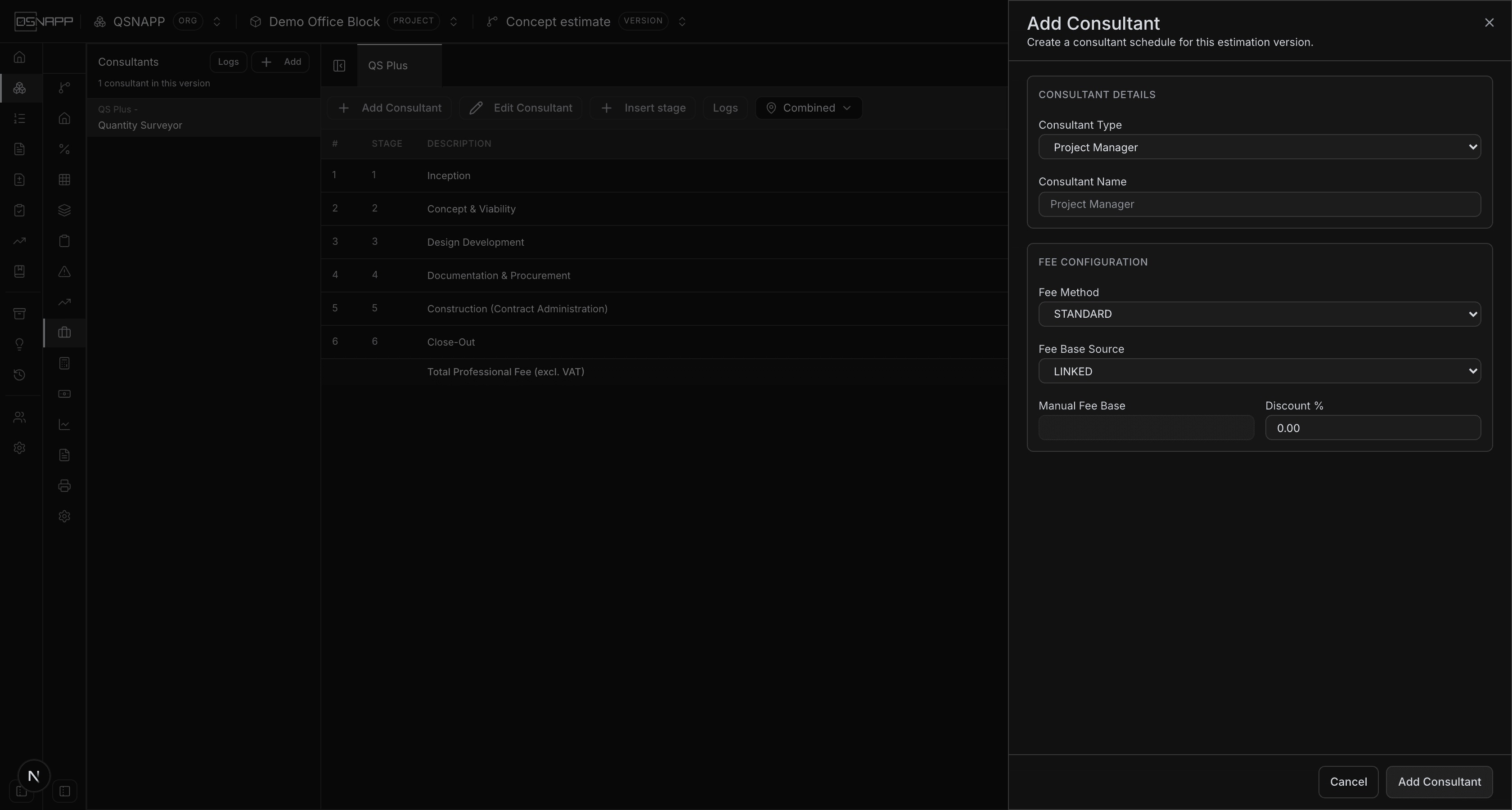
Add Consultant asks for the appointment and the basis of the fee:
| Field | What it does |
|---|---|
| Consultant Type | Project Manager, Principal Agent, Quantity Surveyor, Architect, Civil and Structural Engineer, Mechanical Engineer, Electrical Engineer, or Health and Safety Agent. The type matters for one thing: the ASAQS scale is only applied to a Quantity Surveyor. When editing, the type is a free text field, but the same test applies — the words “quantity surveyor” must appear in it. |
| Consultant Name | The firm, or a label. Left blank, it takes the type. Two consultants in one version cannot share a name. |
| Fee Method | STANDARD — stage percentages of the base, which you set. See The standard method. ASAQS — the fee is read off the statutory scale and split by the published apportionment. See The ASAQS scale. |
| Fee Base Source | LINKED — the base is taken from the estimate and moves with it. MANUAL — you type it. See What a fee is worked out on. |
| Manual Fee Base | The typed base. Only enabled when the source is MANUAL. |
| Discount % | Taken off before the stages are worked out. Nought to a hundred. |
| Agreed Lump Sum Fee | Shown for ASAQS only. Used when the base falls below the first calculated bracket. See Below the first bracket. |
A standard consultant arrives with six stages already in place — Inception 5, Concept & Viability 15, Design & Development 20, Document & Procurement 30, Construction Phase 27, Close-Out 3 — and its fee worked out from them at once. Those six add up to 100, and because a standard percentage is a percentage of the base, a consultant left on them is charged the whole base as a fee. They are a scaffold for the stage names, not a tariff: set each stage's percentage to what the appointment actually earns at that stage.
An ASAQS quantity surveyor arrives with its six stages from the apportionment table, already priced. An ASAQS consultant of any other type gets no stages and no fee — the scale in this version of QSNAPP is the SACQSP quantity-surveying one, and there is nothing to read an architect's fee off. Use the standard method for the other disciplines.
The number typed into any of these fields accepts a comma or a full stop as the decimal mark, and spaces between thousands. A field left blank is nought, not “not stated”: a manual base left empty prices the consultant at nothing, and says so in the amounts rather than flagging it.
What a fee is worked out on
Every consultant has a base — the amount its percentages are taken of. Where it comes from is the most consequential choice on the tab, because the same 5% of two different bases is two different fees.
Linked
A linked base is read from the rest of the estimate, and the two figures at the right of the toolbar are the two it can be. Which one applies depends on the fee method:
- Standard consultants are charged on the linked fee base from escalation: the Escalationtab's estimated final cost — the amounts on its pre-tender rows, which start as the works with preliminaries and contingencies, plus the pre-tender and contract escalation worked out on them. So a standard fee includes the works, the preliminaries, the contingencies and the escalation. When the escalation tab has no rows, the works with preliminaries and contingencies are used instead, section by section.
- The ASAQS quantity surveyor is charged on the linked ASAQS base: the works with preliminaries only — every component total in the elemental breakdown, with each section's preliminaries percentage added. Contingencies and escalation are left out, which is what the scale expects. If that comes to nothing, the escalation base above is used instead.
Where a section has no preliminaries or contingencies percentage recorded, this tab takes it at 12% for the purpose of the base.
A linked base is not stored and then forgotten. Every time the tab opens it is worked out again, and every linked consultant is repriced and saved from it — so a fee you looked at last week and a fee you look at today can differ because the elemental breakdown changed in between, without anyone having touched this screen.
A linked figure is also recorded on the consultant itself, and that recorded figure is what the printed estimate shows as its fee base. For the quantity surveyor it is refreshed with every reprice; for a standard consultant it is the linked base as it stood when the consultant was last saved from the drawer — and it is recorded on a manual consultant too, so the fee base that prints for one is the estimate's figure at that moment, not the typed one.
Manual
A manual base is a figure you type and the estimate does not move. Use it when the appointment is on a fixed value — a fee agreed on a tender sum, a consultant on a portion of the works only. Nothing repriced elsewhere reaches it.
Discount
The discount is taken before the stages. On a standard consultant it is taken off the base, and every stage percentage is then applied to what is left; on an ASAQS consultant it is taken off the scale fee, and the apportionment splits what is left. The two come to the same thing — a stage of a discounted fee — but it means a 10% discount on a standard consultant shows as a smaller base, not as a smaller percentage.
The standard method
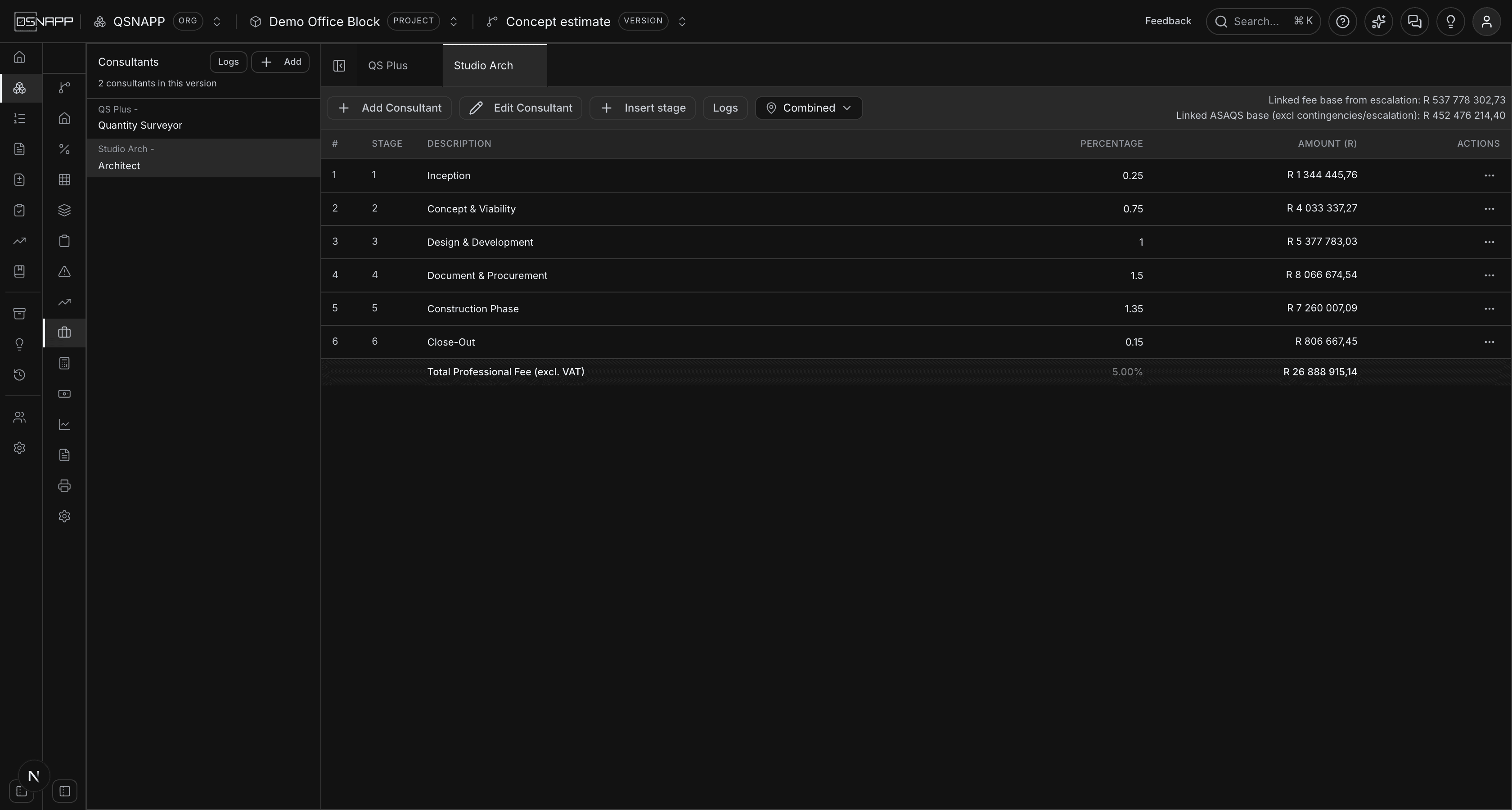
Each stage's amount is its percentage of the base after discount, and the fee is the stage amounts added up:
stage amount = base × (1 − discount ÷ 100) × stage % ÷ 100
fee          = the stage amounts added up
An architect on a linked base of R10 000 000 with no discount, with the stage percentages set to what the appointment earns at each stage:
Stage                       %       Amount
1  Inception                0,25    R25 000,00
2  Concept & Viability      0,75    R75 000,00
3  Design & Development     1,00    R100 000,00
4  Document & Procurement   1,50    R150 000,00
5  Construction Phase       1,35    R135 000,00
6  Close-Out                0,15    R15 000,00
                            5,00%   R500 000,00
The fee is 5% of the base. The stage percentages are that 5% laid out over the stages, so a client can see what is payable when — which is what a fee schedule is for. Whether you write one stage at 5,00 or six that add to it is up to you; the fee is the same.
Because the base is linked, repricing the elemental breakdown reprices every stage. The percentages are the only figures on a standard consultant that are yours.
The ASAQS scale
The quantity surveyor's fee is regulated: a primary fee for the bracket the project value falls in, plus a marginal percentage on the value above the bracket's threshold. Choose ASAQS as the fee method on a Quantity Surveyor and the tab reads the fee off that scale rather than asking for percentages.
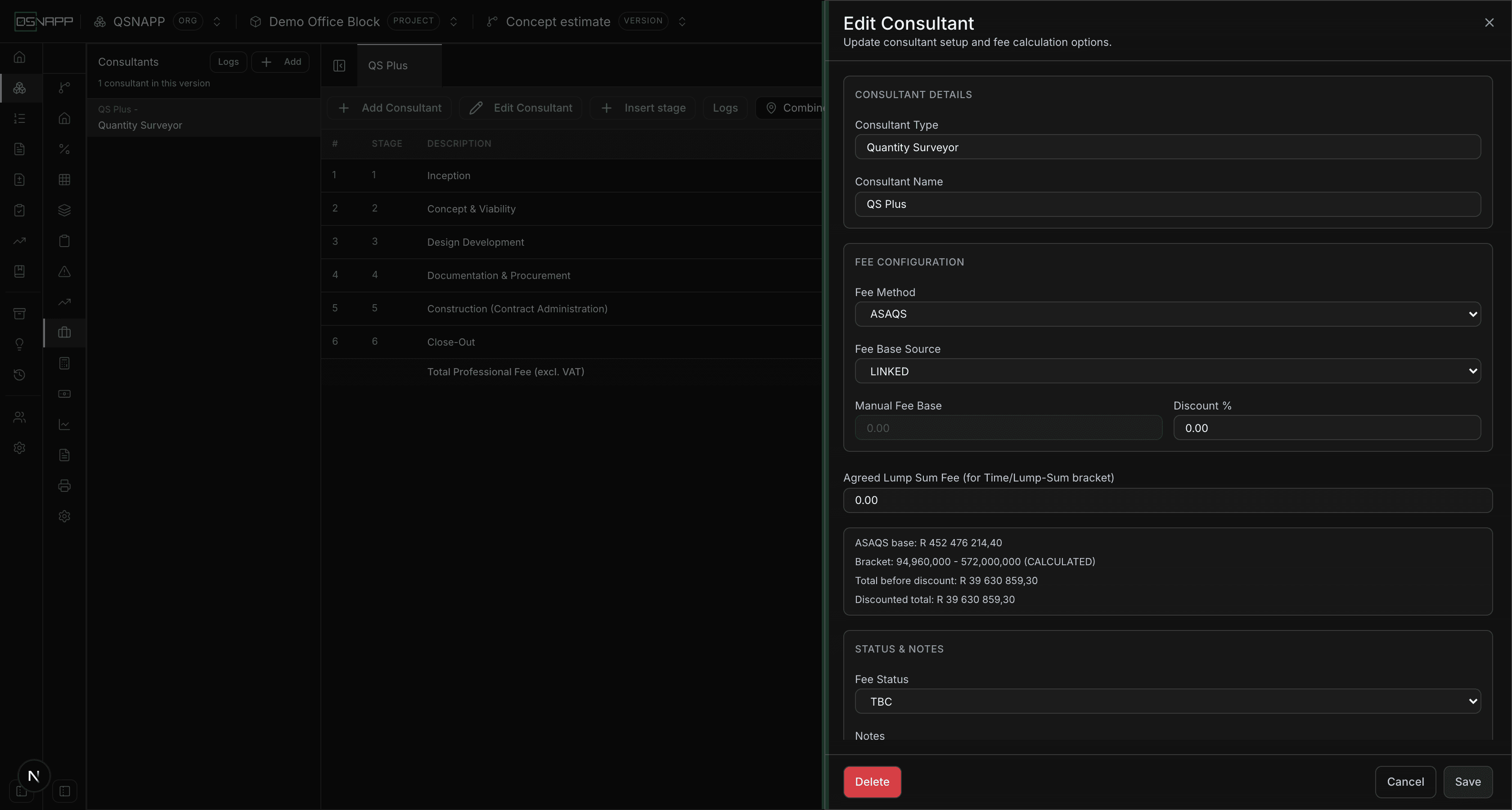
The edit drawer shows the working for an ASAQS consultant as you change it: the base, the bracket it fell in, the fee before discount and after. If the base is below the first calculated bracket it also says which interim figure it is using. Nothing is saved until Save.
The brackets
The scale QSNAPP ships, as seeded in the database:
| Value from | Up to | Primary fee | Marginal |
|---|---|---|---|
| R0 | R850 000 | Lump sum — see below | |
| R850 000 | R1 899 000 | R106 300 | 15% |
| R1 899 000 | R9 347 000 | R237 400 | 12% |
| R9 347 000 | R19 066 000 | R982 400 | 10,5% |
| R19 066 000 | R47 372 000 | R1 857 000 | 10% |
| R47 372 000 | R94 960 000 | R4 121 400 | 9,5% |
| R94 960 000 | R572 000 000 | R7 454 400 | 9% |
| R572 000 000 | and above | R40 840 800 | 9% |
A value sitting exactly on a boundary belongs to the upper bracket. The fee is the primary fee plus the marginal percentage of the value above the bracket's lower limit:
fee = primary fee + (base − bracket lower limit) × marginal ÷ 100The demo project's quantity surveyor is linked, with a base of R452 476 214,40 — the works with preliminaries — and no discount:
Base                        R452 476 214,40
Bracket                     R94 960 000 to R572 000 000
Primary fee                 R7 454 400,00
Above the lower limit       R452 476 214,40 − R94 960 000,00 = R357 516 214,40
Marginal                    9% of that                        = R32 176 459,30
Fee before discount         R7 454 400,00 + R32 176 459,30   = R39 630 859,30
With a discount, the discounted fee is that figure less the percentage, and it is the discounted fee the stages split and the total project cost carries.
Below the first bracket
Under R850 000 the scale does not give a formula — the fee is a lump sum to be agreed. Type the agreed figure into Agreed Lump Sum Feeand it is the fee before discount. Until one is entered, the tab uses an interim estimate so the stages do not sit at nought while the appointment is being set up: the first calculated bracket's formula run backwards from its threshold.
Base                 R600 000,00
Interim estimate     R106 300 + (R600 000 − R850 000) × 15% = R68 800,00
The edit drawer says Using estimated interim lump sum while this is in force. An agreed lump sum entered on a consultant whose base is inside a calculated bracket is kept but not used; the scale figure stands.
How the stages split it
The discounted fee is divided across six stages by the SACQSP apportionment, which is seeded alongside the scale: Inception 5%, Concept & Viability 20%, Design Development 30%, Documentation & Procurement 15%, Construction (Contract Administration) 25%, Close-Out 5%. Each stage amount is the fee times the stage's percentage, rounded to cents on its own — so the six can differ from the fee by a cent or two, and do in the demo:
Fee                                        R39 630 859,30
1  Inception                                5%    R1 981 542,96
2  Concept & Viability                     20%    R7 926 171,86
3  Design Development                      30%    R11 889 257,79
4  Documentation & Procurement             15%    R5 944 628,89
5  Construction (Contract Administration)  25%    R9 907 714,82
6  Close-Out                                5%    R1 981 542,96
On an ASAQS consultant the Percentage column is this split, and editing it redistributes the same fee: change a stage to 10% and it takes a tenth of the discounted fee. The scale figure itself does not move. Whenever the base changes — every time the tab opens on a linked consultant, or when the consultant is saved — the stages are struck out and written again from the apportionment table, so a split you changed by hand is put back to the published one. Keep the standard split on an ASAQS consultant; if the appointment is on a negotiated split, price it as a standard consultant instead.
Editing the stages
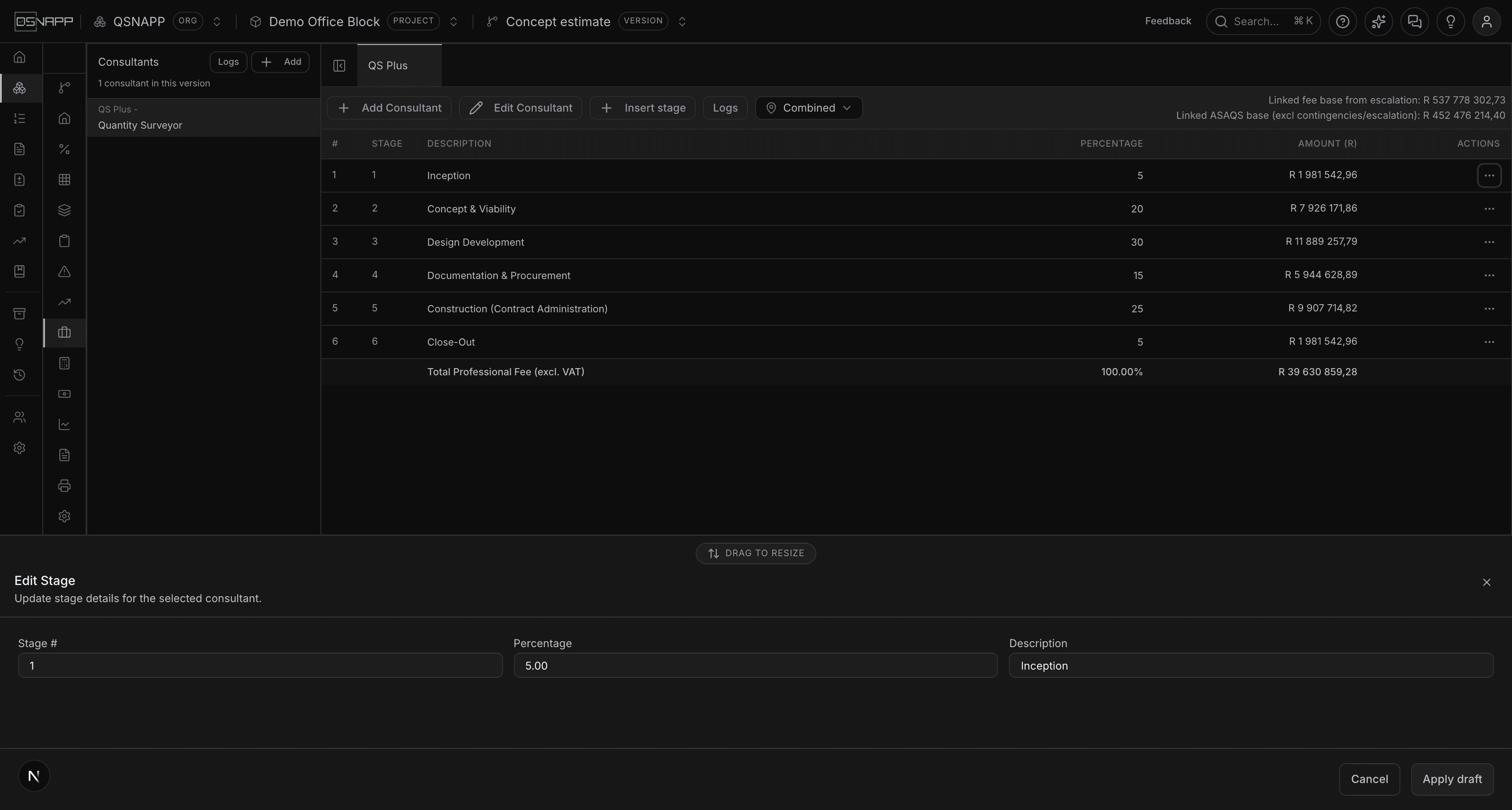
The description and the percentage are typed straight into the table. The stage number is changed from the row's menu — Edit opens a panel at the foot of the screen with the number, the percentage and the description together, and Apply draft puts the values into the row without saving them.
Saving, and seeing what is unsaved
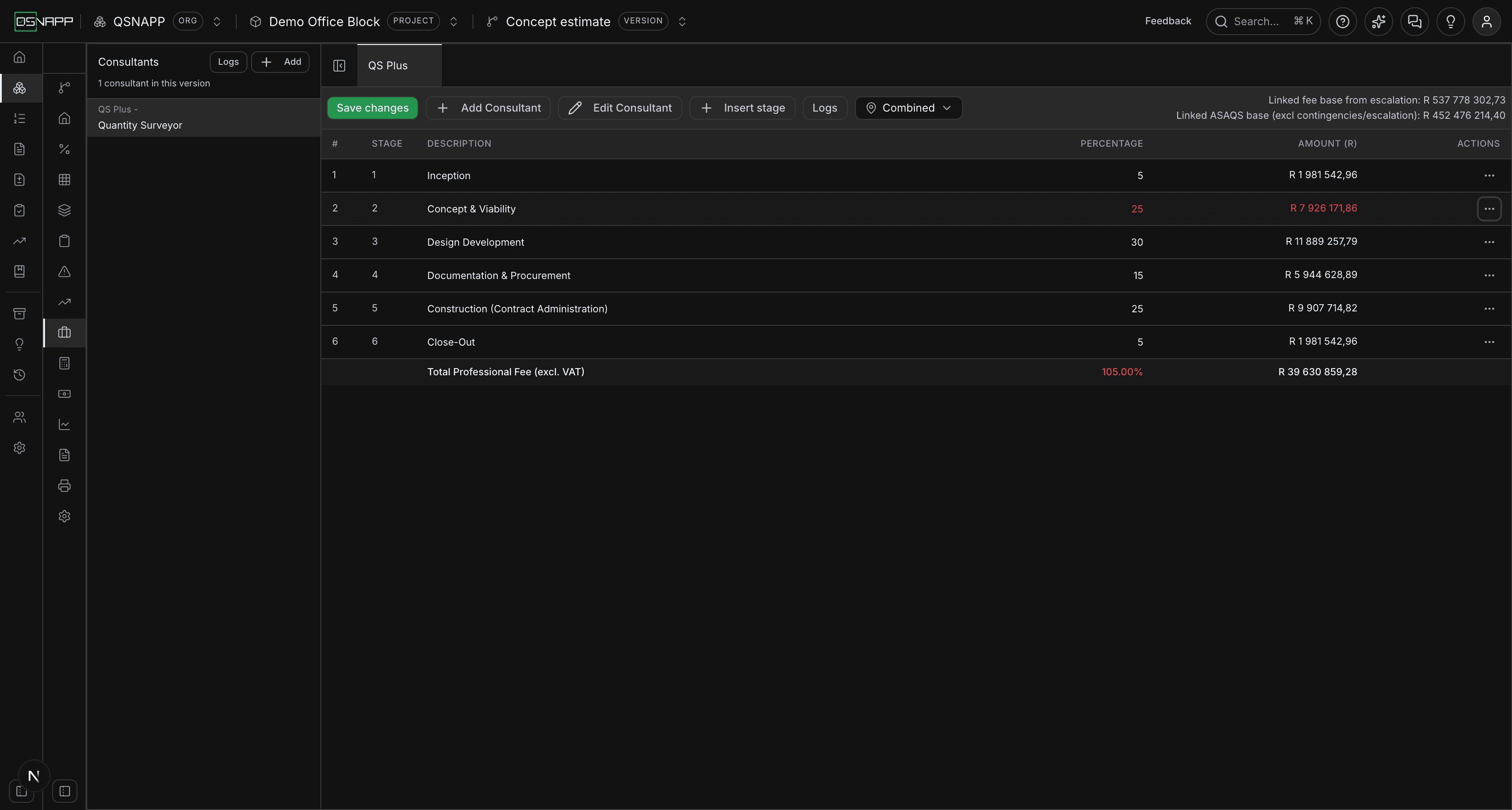
A changed description, percentage or stage number turns red, and so does the amount worked out from it, until Save changes in the toolbar is pressed. The amount you see is already the new one — the arithmetic is done as you type — but the database still holds the old figure, and so does everything reading from it, until you save.
Saving writes each changed field, reprices the consultant, and reports each change in its own message with a Rollback change action. Rolling back puts the previous value back and records that it did so; if the field has been changed again since, the rollback is skipped rather than overwriting the newer value.
Inserting and removing stages
Insert stage adds a row numbered after the last, called New Stage, at 0%, and saves it at once. The same button sits in the edit drawer's Stage Setupsection, which lists the stages with their percentages and a bin beside each one — the drawer deletes without asking; the table's Remove asks first, naming the stage. Either way the consultant is repriced from the stages that remain.
Fee status and notes
In the edit drawer each consultant carries a Fee Status — TBC, N/A or Confirmed — and a free Notes field. The status is a record of where the appointment stands; a new consultant is TBC.
N/A is the one status with an effect, and only in one place: the printed estimate leaves N/A consultants out of the Professional Fees section unless Include consultants marked excludedis ticked for that section. The total project cost, the cash flow and the return on investment add every consultant's fee whatever its status, so a consultant that should cost nothing is one whose percentages are nought or that has been deleted — not one marked N/A.
Deleteat the foot of the edit drawer removes the consultant and all of its stages, after asking. There is no undo beyond the change log's record that it happened.
Reading a fee by place
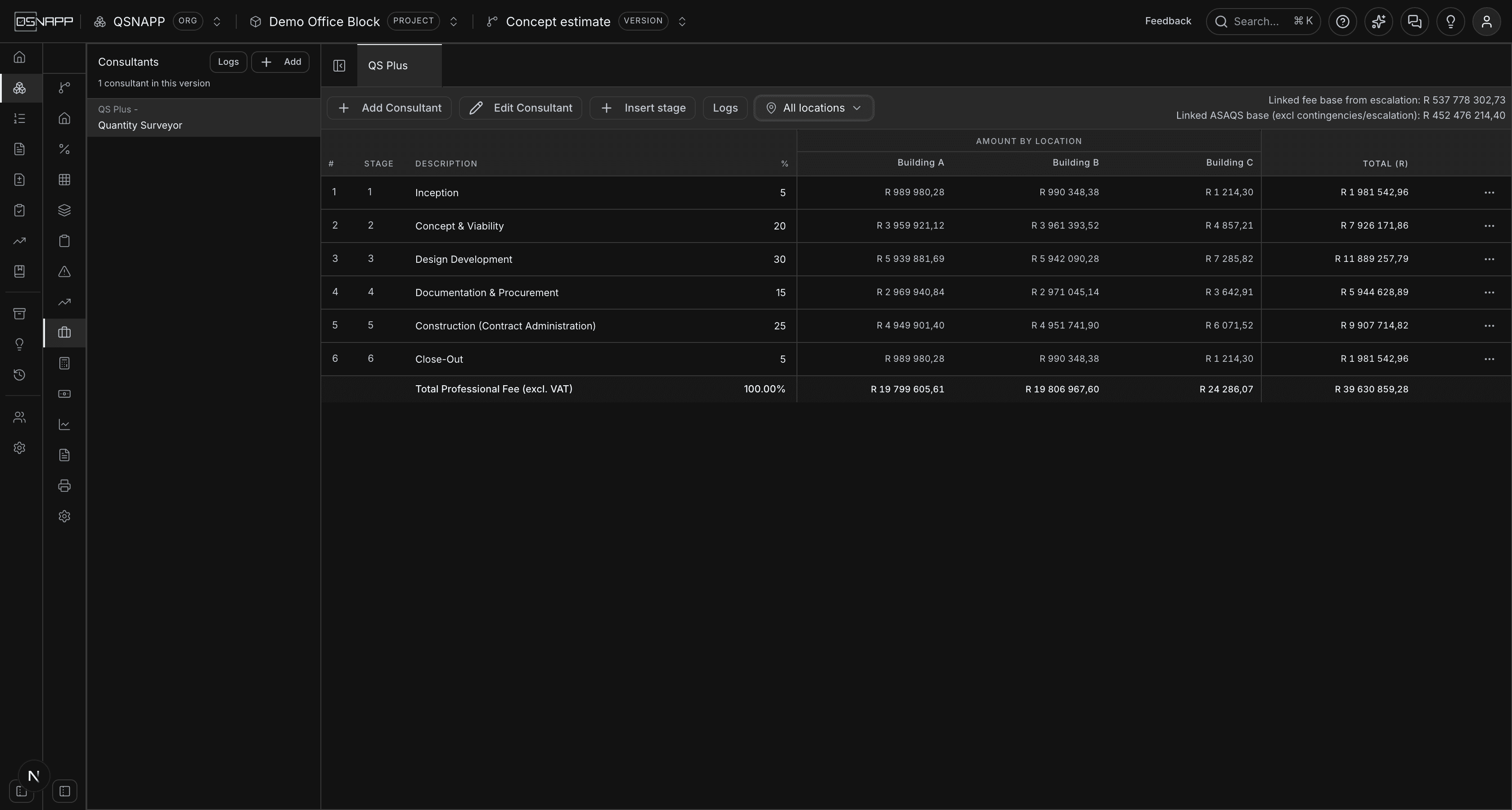
When the elemental breakdown is measured in places, the toolbar gains the same picker the other screens carry: Combined, All locations, or any set of places ticked one at a time. Picking places turns the single amount column into one per place, with a Total beside them.
A fee is a percentage of one base, so it is split the way the base is: each place takes the share of the works cost that is measured in it, and the stage amount is multiplied by that share. Cost measured in no place appears under Unallocated, so the place columns always add up to the total. Nothing is stored — the columns are a way of reading the fee, and closing the picker leaves the fee exactly as it was.
Only the money splits. A stage percentage belongs to the appointment, not to a building, so the % column stays single however many places are on screen.
The change log
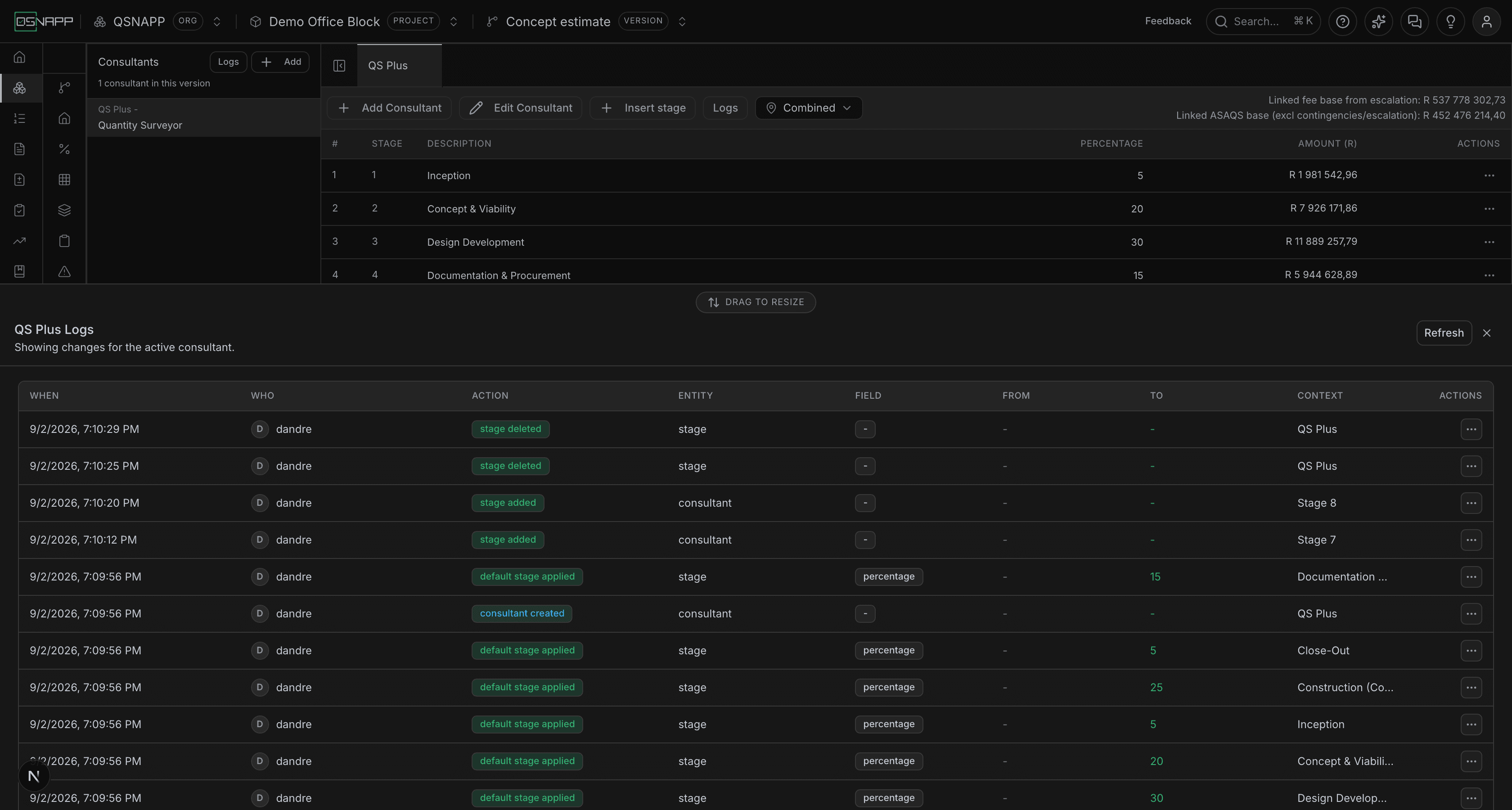
Every change on this tab is recorded — a consultant added, edited or deleted; a stage added, changed or removed; the default stages applied; a rollback. Logs in the toolbar opens the record for the open consultant, and Logs at the top of the rail opens it for every consultant in the version. Each entry says when, who, what was changed, and for a stage edit the value before and after.
Each entry has a menu. Take me there opens the consultant and flashes the stage the entry is about. Roll back is offered on stage edits that recorded a before and after, and does what the message after saving does: puts the earlier value back, unless the field has moved on since.
What the rest of the estimate sees
Each consultant's fee is stored on the consultant, excluding VAT, and that is the figure the other tabs read:
- Total project cost adds every consultant's fee into the estimated building cost, on top of the escalated final cost. Its estimated building cost drawer shows the fees as one line and has an Include Professional Fees switch; turned off, the building cost is the escalated cost alone and the fees are left out of everything built on it.
- Cash flow reads the same setting and the same fees.
- Return on investment offers the total as
PROFESSIONAL_FEES, and itsESTIMATED_BUILDING_COSTincludes the fees unless the switch is off. - Print & Export has a Professional Fees section: one line per consultant with its discipline, its basis (Standard or ASAQS scale), the fee base recorded on it (see Linked), its discount and its fee, and a total. Break each consultant down by stageprints the stages under each; picking places splits each fee by the project's cost share, as the screen does.
None of them reprices anything. The fee they read is the one this tab last saved, which is why a linked consultant is repriced every time this tab opens: opening it is what brings the fee up to date with the works.
Who can change what
Adding, editing and deleting consultants and stages needs permission to update the project. Reading them needs permission to view it. The scale and the apportionment tables are read-only for everyone; they are platform data, and the only way to price a consultant off a different split is the standard method.