Contingencies
A contingency is held against what the estimate cannot yet know — design development, ground conditions, the drawings that have not been issued. This tab carries it as a percentage on each section of the elemental breakdown, taken on the section with its preliminaries added.
What this screen is
The same screen as Preliminaries, working on a different base and keeping its own figures. It lists one row per section of the elemental breakdown, lets you set a rate per section or one rate for all of them, and shows what the rate comes to. The controls, the way figures are typed and saved, the places view and the logs all behave as they do on the preliminaries tab, and this page says where they differ rather than repeating what does not.
What is different is the number in the base column, and it is different on purpose. A contingency is an allowance against the cost of the works as they will be tendered, and a tendered price includes the contractor's preliminaries. So the contingency is taken on the section plus its preliminaries, not on the measured work alone.
There is no Contingency Allowances section in the elemental structure. There used to be one; it was removed so that the allowance lives in one place only.
What it is a percentage of
Per section:
base         =  section total + (section total × preliminaries % ÷ 100)
contingency  =  base × contingency % ÷ 100
total        =  base + contingency
A section priced at R10 000 000 carrying 12% preliminaries has a base of R11 200 000 here. At 12% contingency that is R1 344 000, and the row's total is R12 544 000. The two percentages compound — 12% on 12% is 25,44% on the measured work, not 24% — because the second is a percentage of a figure that already includes the first.
The preliminaries rate used is whatever the preliminaries tab holds for that section: its own rate in Individual mode, the global figure in Global mode, and 12% for anything never saved. Change a preliminaries rate and the base column here moves with it the next time the tab is opened. Nothing about preliminaries can be changed from this screen.
Reading the table
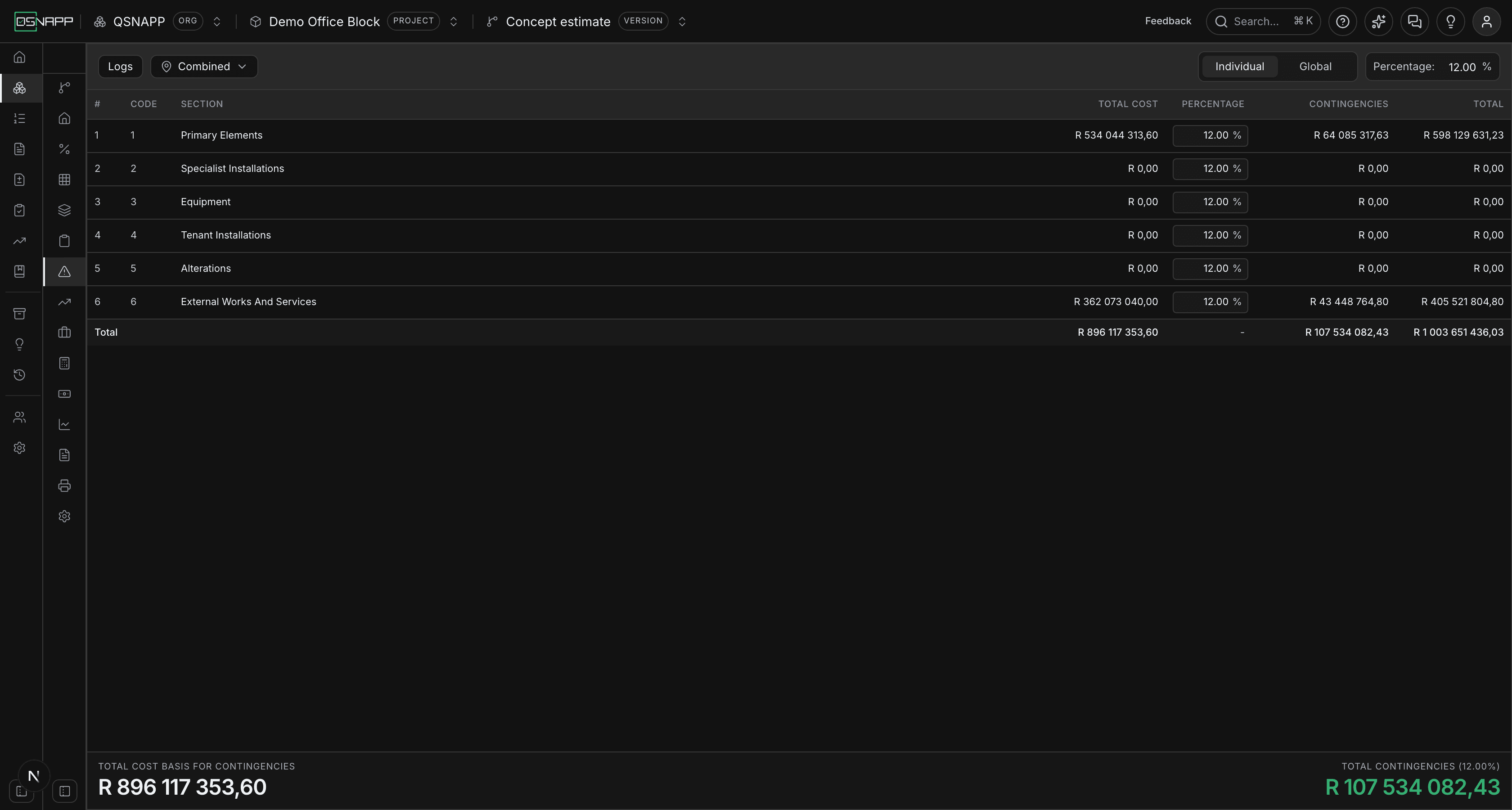
The columns
| Column | What it holds |
|---|---|
| # | The row's position in the list. |
| Code | The section's number in the elemental structure. |
| Section | Its name. |
| Total Cost | The section's components added up, plus its preliminaries. Not editable here — the components are priced in the breakdown and the preliminaries rate is set on its own tab. |
| Percentage | The contingency rate for that section. A box in Individual mode; plain text in Global mode. |
| Contingencies | Total Cost × Percentage. Worked out, not stored. |
| Total | Total Cost + Contingencies. |
As on the preliminaries tab, only sections holding at least one component are listed, a section with unpriced components shows at R0,00, and a version without an elemental breakdown shows one line saying so. Money reads R1 234 567,89; percentages use a dot, 12.00.
The two figures at the foot
Total cost basis for contingencies is the sum of the base column — the works with preliminaries on — and it is the figure the preliminaries tab shows as its own total column. Total contingencies is what the rates come to, with the effective rate in brackets: total contingency over total base, weighted by section, so that it agrees with the rand figure beside it. In Global mode it is the global figure; in Individual mode it is the blend of the section rates.
Setting the percentages
Individual or Global
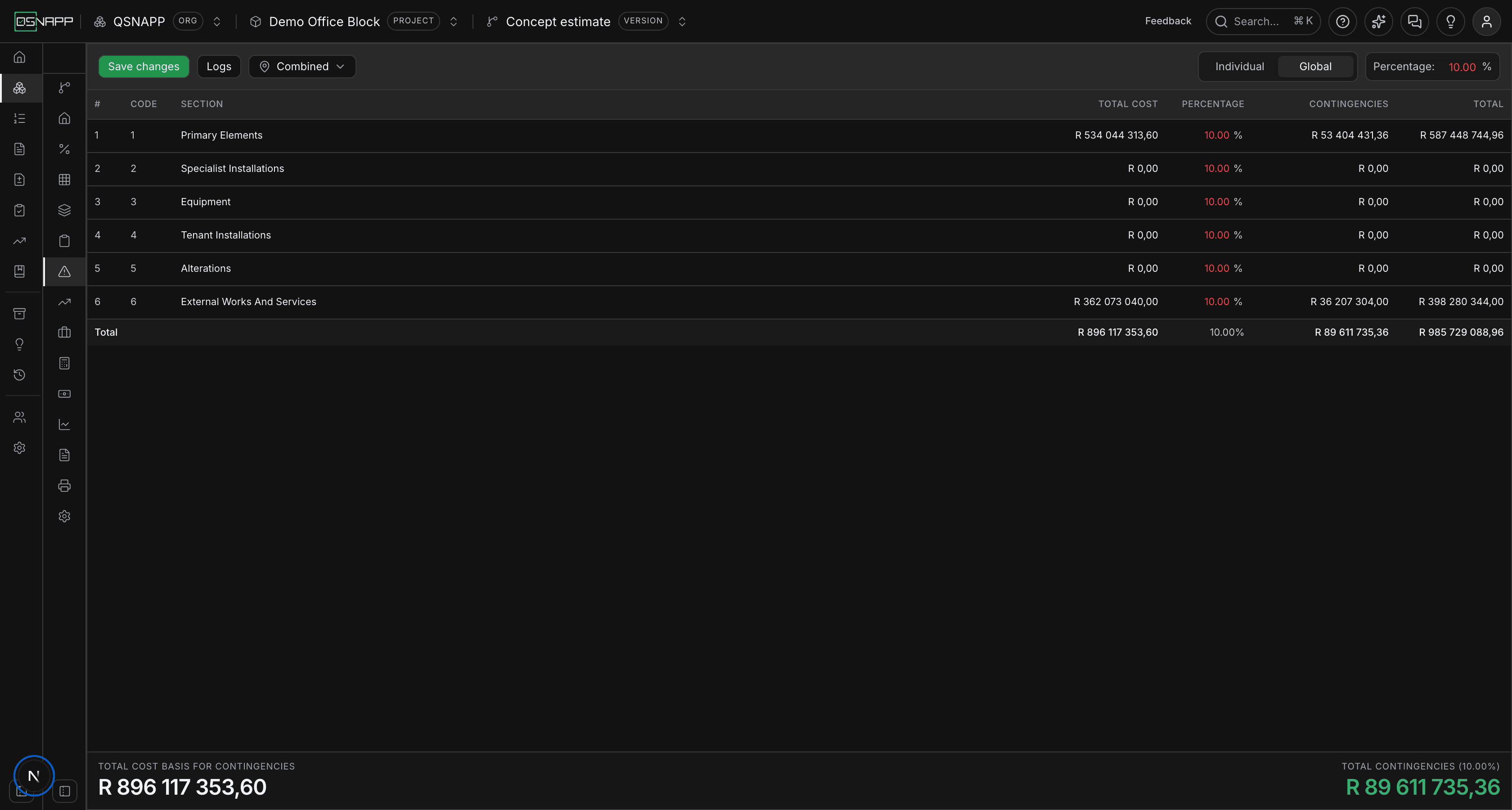
The switch at the right of the toolbar chooses between a rate per section (Individual, the starting mode) and one rate for all of them (Global), with the global figure in the Percentage box beside it. Choosing Global writes that figure into every row and makes the row boxes read-only; the rows follow the toolbar box as you type.
The same caution applies as on preliminaries: switching to Global overwrites the section rates on screen and switching back does not restore them, and saving in Global mode saves the global figure against every section. Reload before saving if you want the old section rates back.
The mode here is independent of the mode on the preliminaries tab. An estimate can carry a single contingency rate over section-by-section preliminaries, or the other way round.
What the box accepts
A number with a dot or a comma, tidied to two decimals when you leave the box. Below zero reads as zero, above 1 000 as 1 000, and anything that is not a number — including an empty box — as zero. Rates are stored to two decimals.
Saving
Nothing is saved as you type. Changed figures turn red, and Save changes appears at the left of the toolbar as soon as the mode, the global figure or any section rate differs from what is stored. Saving writes only what changed, logs each change, and confirms each with a message carrying a Rollback change action — refused if the figure has moved again since.
Twelve percent until you say otherwise
A version whose contingencies have never been saved shows 12.00% against every section in Individual mode, and stores nothing until you save. Every other place that reads contingencies uses the same 12% for anything unsaved, so the screen and the printed estimate agree. It is a default, not a decision: an empty log is how to tell the difference.
Contingency rates belong to a version, separately from its preliminaries rates. A new version starts at 12% throughout.
Reading it by place
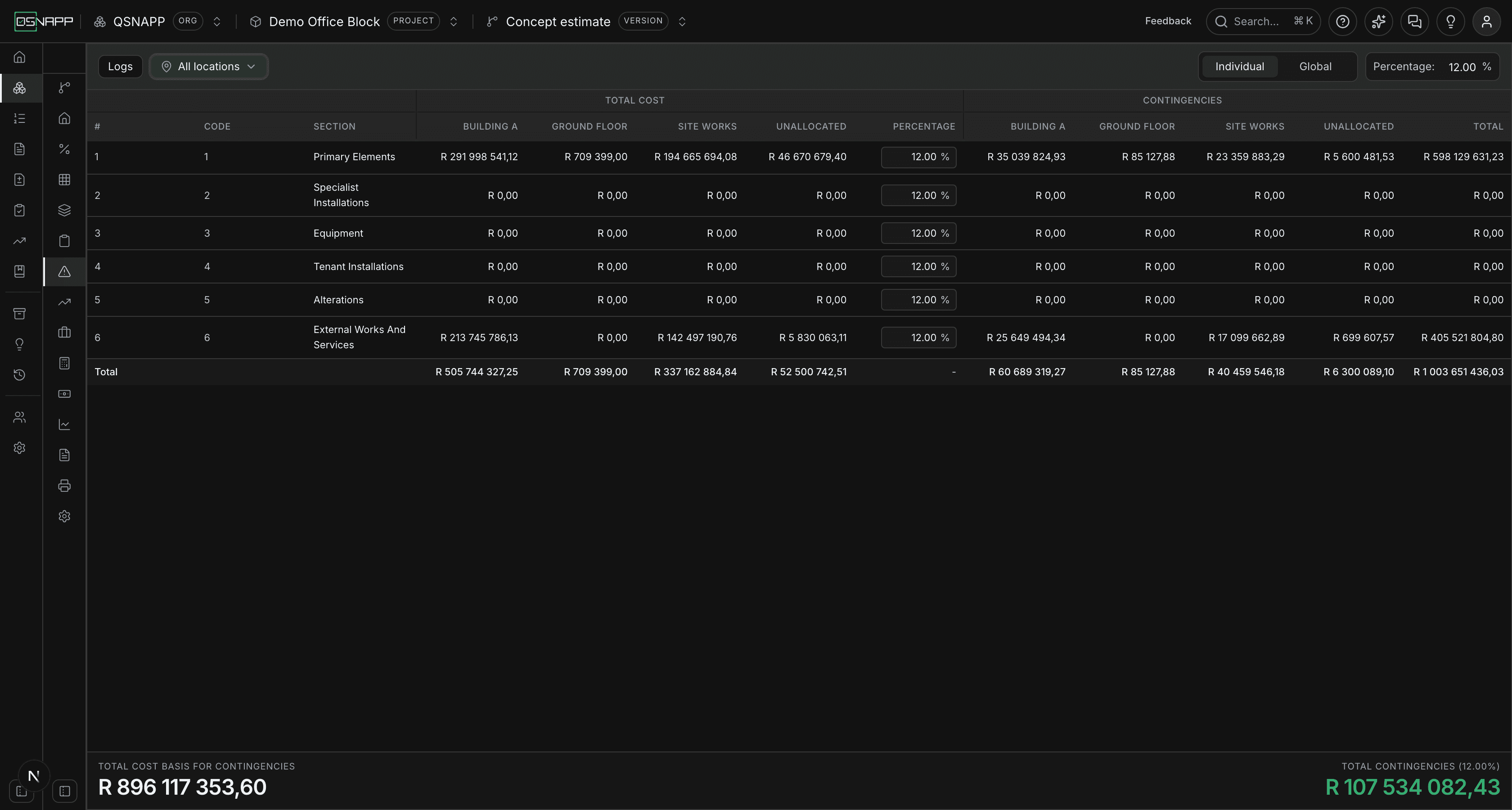
When components have been measured by place, the places control appears in the toolbar with the same three states as everywhere else — Combined, All locations, or the places you tick — and splits the money columns into one per place, with an Unallocatedcolumn for cost that belongs to no place. The Percentage column stays as one column, because the rate is the section's.
There is one thing this tab has to do that preliminaries does not. Its base is not the sum of the component totals, so a place's share cannot simply be read off the components measured there. Instead each section's split is scaled up by the same ratio that took the section from its measured cost to its base. That ratio is the same for every place in the section — preliminaries are a percentage of the section, not of a building — so the proportions are preserved and the place columns still add up to the total.
Nothing about this view is stored; it resets to Combined when the page is reloaded.
The logs
Logsopens the same drawer the preliminaries tab has, showing this project's saved contingency changes — mode, global figure, section rates and rollbacks — newest first, with who made each, the figure before and after, and the section. It is a separate trail: contingency changes never appear in the preliminaries log or the other way round, and it covers every version of the project rather than only the one open.
Each entry's menu offers Take me there, which sets the screen up as the entry describes without saving, and Roll back, which restores the previous figure and saves it at once, refused if the figure has moved since. See Preliminaries for the full account; the behaviour is identical.
Where the figure goes next
- Escalation starts from each section with both preliminaries and contingencies added — the Total column here, summed — and Professional fees read the same rates for the base they are calculated off. Total project cost takes the escalated figure, so the contingency reaches it through those.
- Cash flow carries contingencies as a line of its own, broken down by section.
- The printed estimate has a Contingencies section — code, section, a “Section + prelims” base column, the rate and the contingency — with an optional total line and, if you choose places, a column per place.
The printed estimate and the overview round each section's preliminaries and contingency to the cent before adding, where this screen adds unrounded figures; totals can differ by a cent or two.
Who can change what
Reading needs permission to view the project; saving needs permission to update it. The controls are shown to anyone who can see the tab, and without the update permission the database refuses the save and the screen says it was unable to. What you typed stays on screen until you leave the page.