Area schedule
The area schedule records what the building actually is — construction area, lettable area, unit counts — place by place. It is the denominator every rate is judged against.
What an area schedule is for
An elemental estimate is sanity-checked as cost per m². That check is only as good as the area it divides by, and “the area” is never one number: a basement is not lettable, a parking deck is not construction area in the same sense as an office floor, and the ratio between gross and lettable is itself a thing the client asks about.
So the areas are recorded properly rather than kept on a napkin — per location, per estimate version, with the ratios worked out rather than typed.
The vocabulary follows the AAQS Guide to Elemental Cost Estimating and the SAPOA method: gross lettable area, usable area, common area. You are not held to it — you name your own columns — but those are the names most schedules use.
An area schedule belongs to one estimate version. The locations it refers to outlive the version; the figures are what that particular estimate assumed. Creating a new version does not bring its area schedule with it — see what a copy carries — and the tab asks you to choose a version before it shows anything.
Reading the schedule
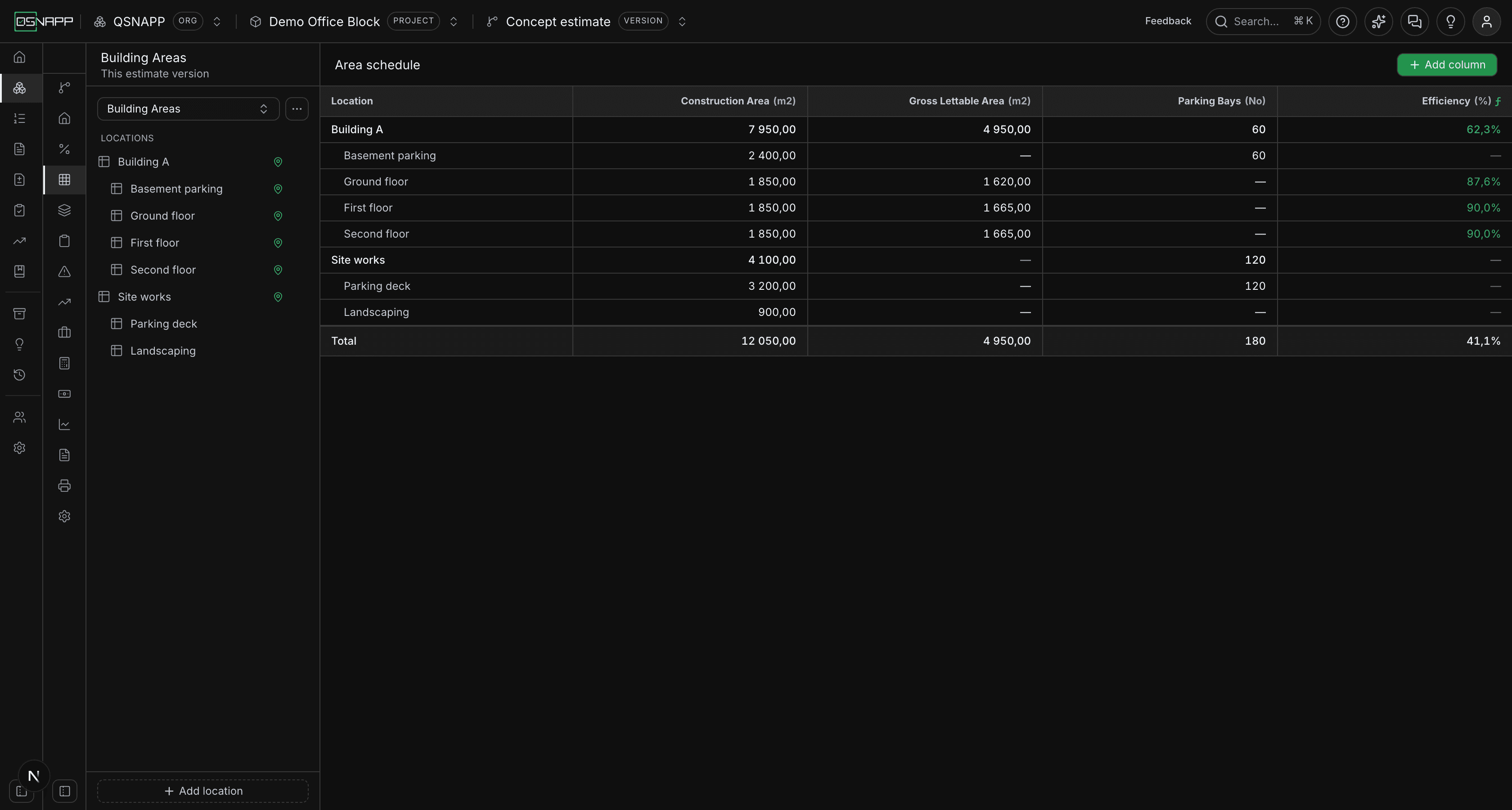
A parent is the sum of its children
Rows are nested. A place that contains other places is not measured — its figure is the sum of the places inside it, and the screen will not let you type one. In the schedule above, Building A's 7 950 m² is its four floors added up; nobody entered it.
Only the places at the bottom of the tree are measured. That is the rule the whole screen runs on, and it is what stops a schedule holding two different answers to the same question.
Not measured is not zero
A cell left empty shows —, and means nobody has measured it. It does not mean the area is zero.
The basement above is the case worth looking at: it has 2 400 m² of construction area, 60 parking bays, and no lettable area recorded. Entering 0for its lettable area would be a claim that somebody measured it and found none — and it would drag the building's efficiency down as though the basement were empty lettable space.
Typing a figure works as you would expect, including the comma: 1,5 is one and a half. A figure copied out of the totals row and pasted back in is read correctly, spaces and all. One thing to know: a comma followed by exactly three digits is read as a thousands separator, the way the rest of the estimate reads it, so 1,200 is twelve hundred. Write 1,2 or 1,20 for one and a fifth.
Enter saves the cell and so does moving on with Tab or a click elsewhere. Esc abandons the edit and puts back what the cell held — and puts back the totals above it, which have been moving as you typed. A cell you tabbed through without changing is not saved again and says nothing.
A cell can hold a formula
A cell takes the arithmetic that produced the figure as readily as the figure itself. Type 3 * 1200 for thirty bays at a nominal size, or CONSTRUCTION_AREA * 0.9 for a lettable area taken as a fraction of the construction area beside it. The cell shows the answer; the working is kept.
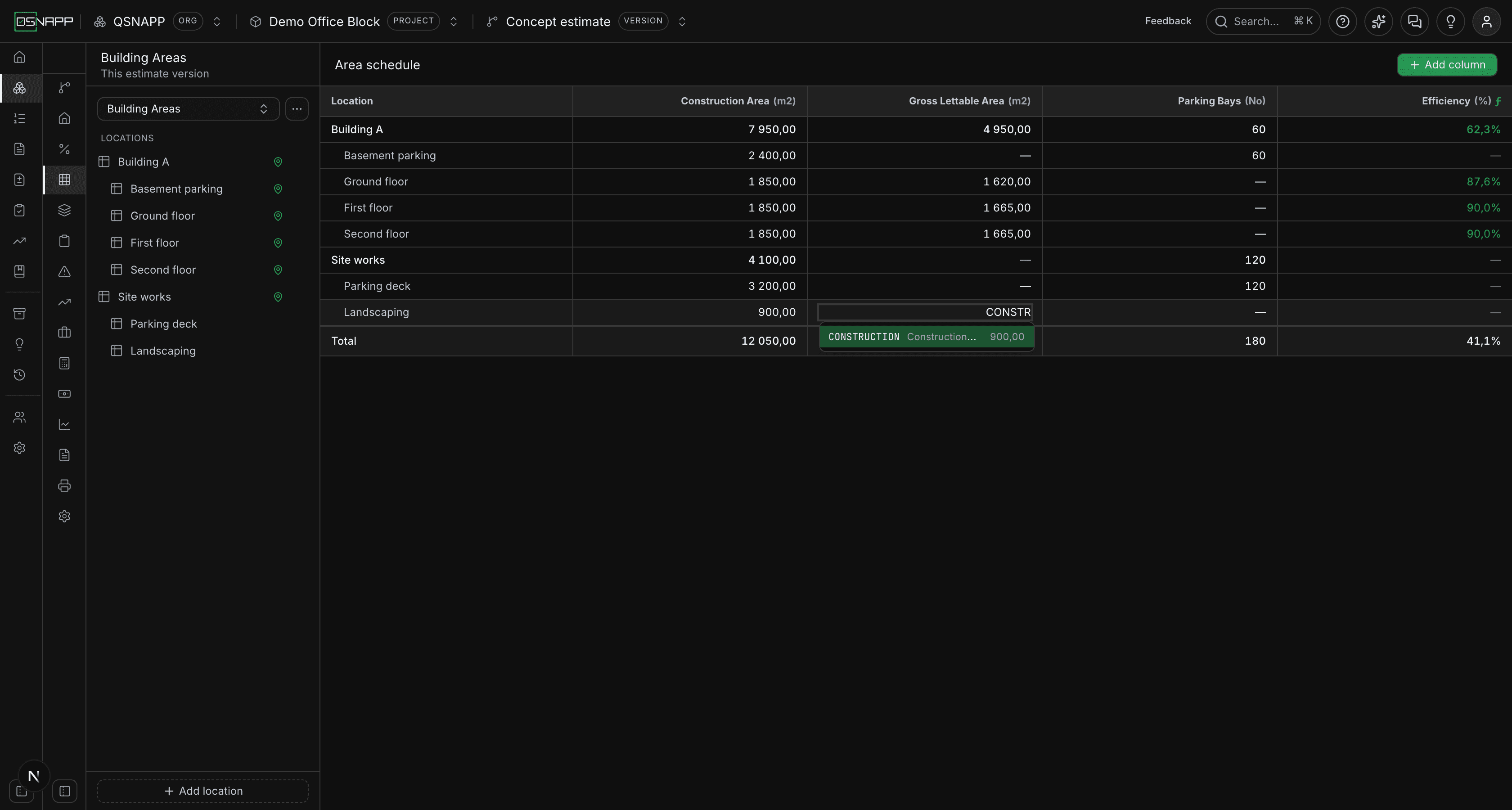
Start typing a column's name and the codes appear, with what each one comes to on that row. The list matches the code first and the column's name second, so somebody looking for GROSS_LETTABLE_AREA can type lett. Arrow keys move through the list, Enter or Tab picks one, Esc dismisses it — and a second Escabandons the edit. Only the measured columns are offered, and never the cell's own — a derived column is worked out from these figures, so a cell reading one back would be a loop.
A cell holding a formula carries an ƒ beside its figure, so it is not mistaken for one somebody measured. Hover it to see the formula and what it comes to. Click into the cell and the formula is what you edit; leave it and the figure comes back.
A formula can name the other measured columns on its own row, and nothing else — not the derived columns, and not other rows. Cells on a row may refer to each other: a lettable area written as CONSTRUCTION * 0.9 moves when the construction area beside it is retyped, and is saved again with it. If a formula stops working — a column it names has been removed, or two cells have been written in terms of each other — the cell turns amber and keeps showing the formula rather than emptying itself. Hover it for the reason: a column that exists but is empty on that row reads GLA is not measured on this row, so you are not sent to look for a column that is plainly there.
= at the front is accepted and ignored, and so are × and ÷ and the long dashes a word processor puts in for a minus, which is what a formula pasted out of a specification usually carries. A figure inside a formula follows the same rules as a figure on its own: 1 200,50 * 2 is fine.
What a save says
Every save is confirmed in the corner of the screen, in words that name the place and the column: Ground floor: Construction Area saved as 1 850,00, or cleared when you emptied it. One message is reused rather than stacked, so filling in a row of eight figures leaves one line that keeps up with you.
When a cell elsewhere on the row moved because it was written in terms of the one you changed, the message says so — 1 other cell updated — because a figure that changes on its own is exactly what somebody checking a schedule needs to be told about.
A formula that was saved but does not work out is reported as a warning rather than a success, with the reason: Landscaping: Gross Lettable Area saved. CONSTRUCTION is not measured on this row. The working is kept, the cell shows nothing, and the roll-up above reads it as not measured — which is the truth.
Locations
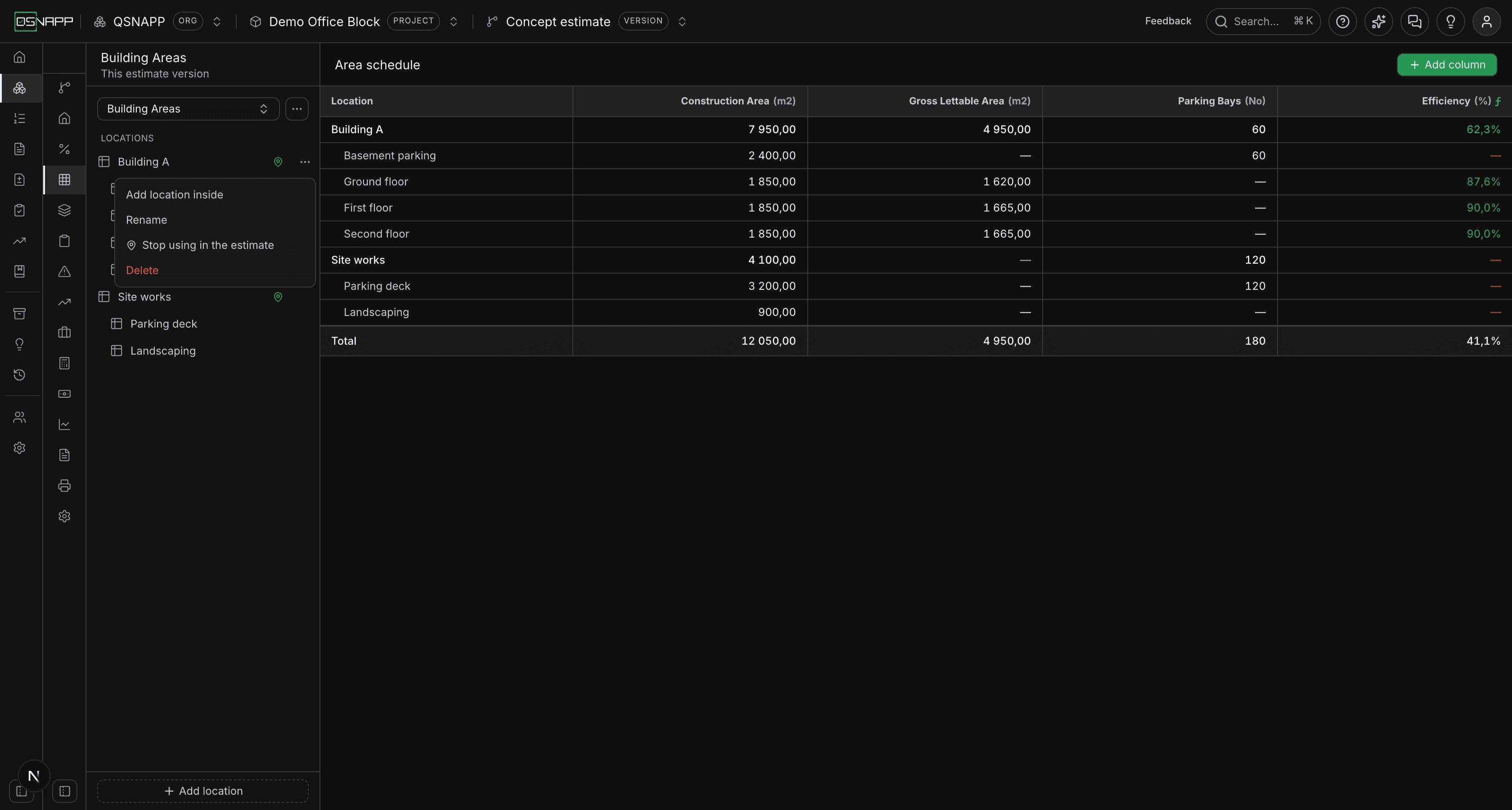
Build the tree with Add location at the foot of the rail, and Add location inside on a row to nest one within another. Nest as deep as the building warrants — a phase holding buildings holding floors adds up correctly all the way to the top.
A place added from the foot of the rail goes into the part of the project this schedule covers, at the top level of its table. Rename is on the same menu; a rename reaches everywhere the place is used, because there is only one of it.
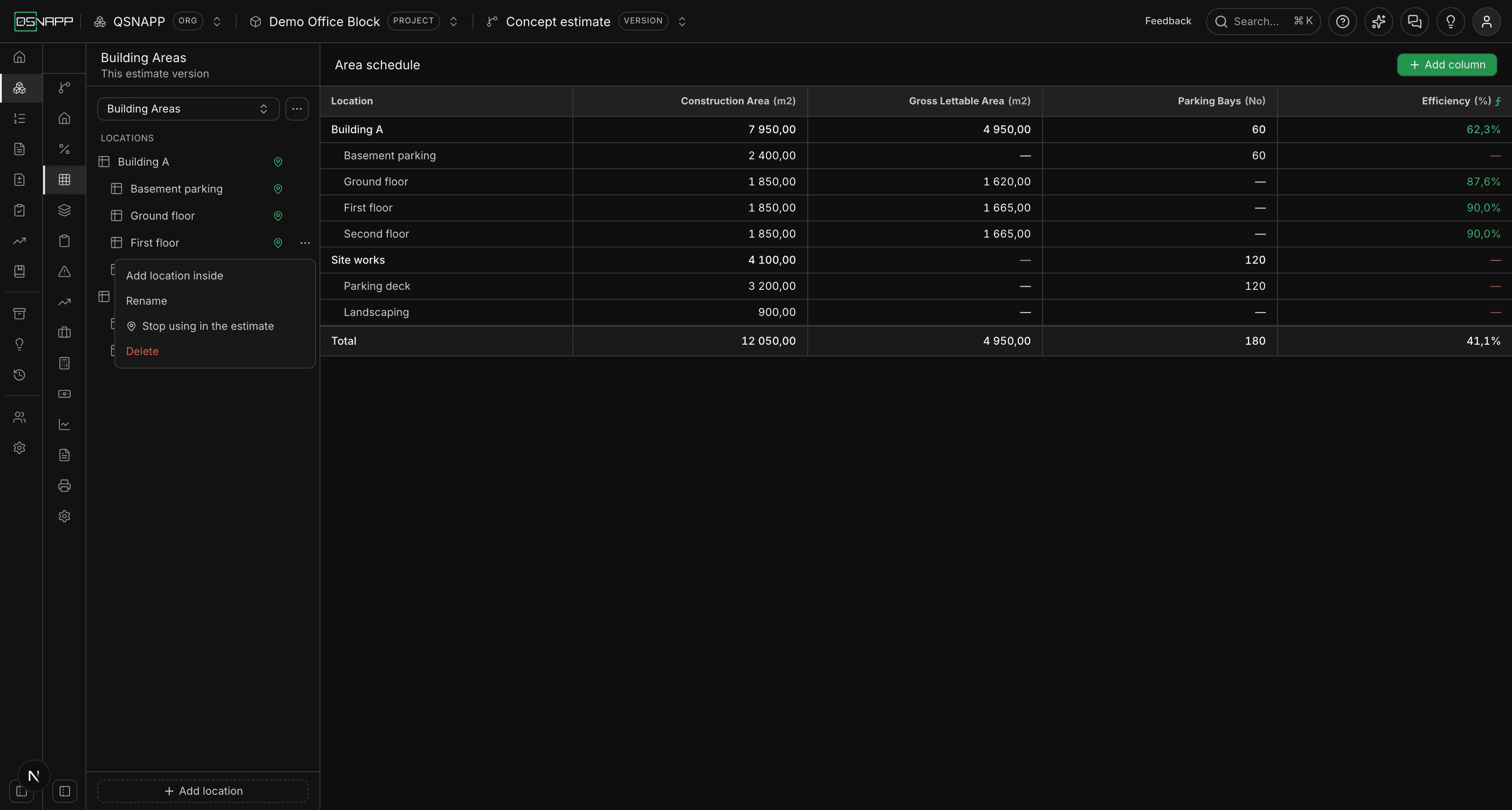
Use as an estimate location, on the same menu, offers the place on the elemental breakdown, where a component can be measured separately in each place it occurs. Mark the places you price by — a building, a floor, a phase — and leave the grouping rows unmarked; a pin beside the name shows which are marked. A component can be measured in a place or in the places inside it, never both, because its quantity is the sum of its places and the inner one would be counted twice. Taking the mark off stops the place being offered; anything already measured there keeps its quantity.
Why locations belong to the project
A location is the project's, not this schedule's. “Building A” is one place, and other parts of the estimate point at the same tree, so there must not be one Building A in the area schedule and a different one everywhere else. Today those parts are:
- The elemental breakdown, where a component's quantity — and, when it differs, its rate — can be stated place by place. A place created there joins this tree at the top level; nesting it under something is done here, where the tree is the thing being edited.
- Preliminaries, which can be shown combined or split into a column per place, using the places components have been measured in.
- Escalation, where a row can name the place it is for. A row that names none is for the whole project.
- Return on investment, where an income line can be about a place and read that row's figures.
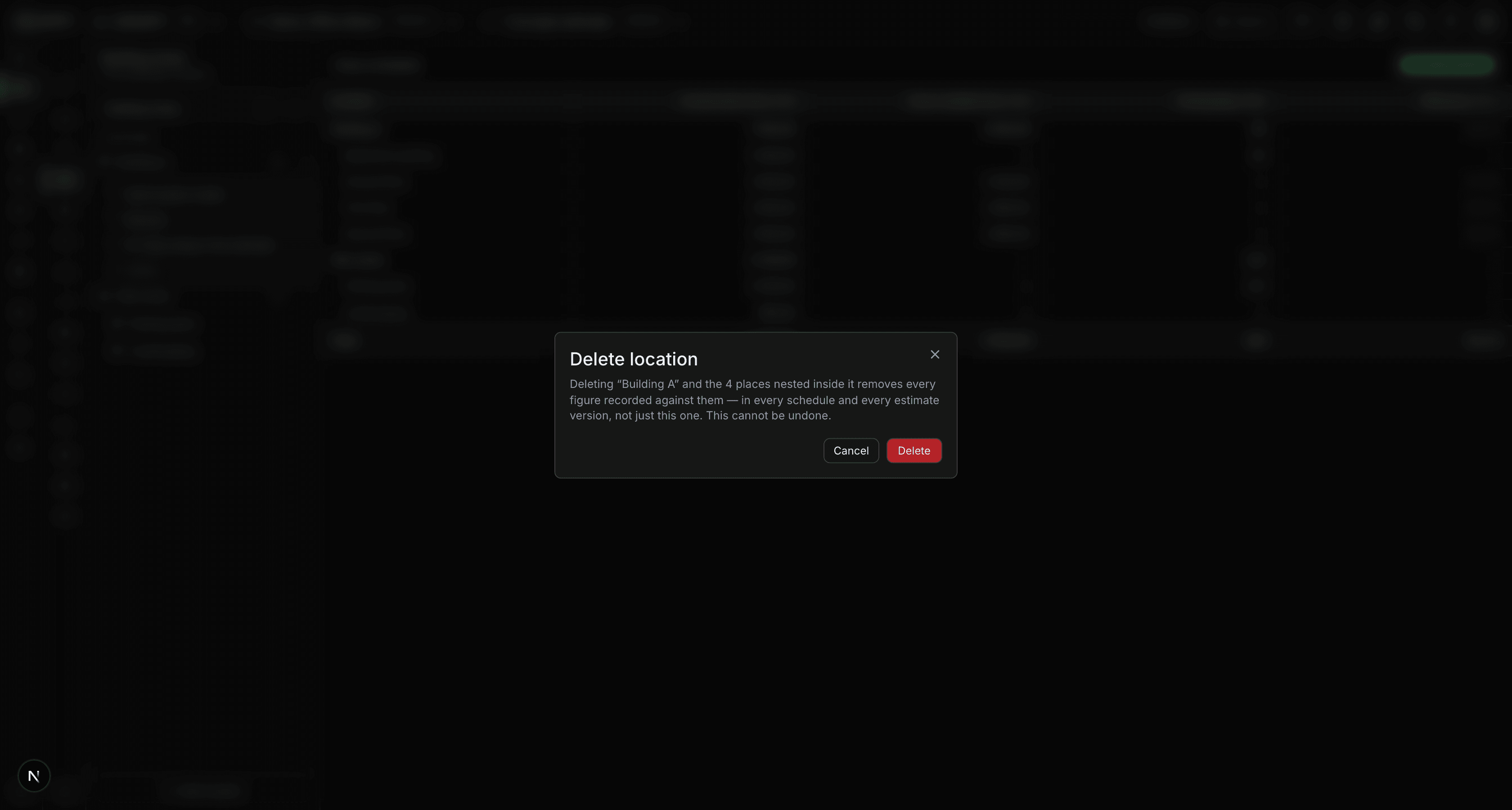
That is also why deleting a location asks so pointedly: it removes the place, everything nested inside it, and every figure recorded against any of them — in every schedule and every estimate version, not only the one you are looking at. The confirmation counts the nested places so “Building A” is not deleted as though it were one row. A component measured in that place loses that allocation; an escalation row that named it falls back to the whole project rather than disappearing.
Columns
You name the columns. Add columnasks for a name, a code, a unit, and optionally a formula. Click a column's heading to change any of those later; hovering the heading shows the code, and the formula if it has one.
Codes
The code is what formulas refer to, so it is letters, digits and underscores, starting with a letter. Spaces become underscores as you type — “Gross Building Area” becomes GROSS_BUILDING_AREA — and everything is upper-cased.
A character that cannot be used, such as a hyphen, is left where you typed it and refused when you save, with a message. It is not silently deleted: quietly removing a character somebody typed is how a code ends up different from the one they think they wrote.
Two columns in one schedule cannot share a code — a formula naming it would not know which was meant. Two schedules can, and usually do; see what the rest of the estimate reads for how that is told apart.
Units
A column is measured in m2, m, No or %, or in nothing. m2 is the default. The unit decides how the column reads: areas and lengths to two decimals, a No column as whole numbers — 60 bays, not 60,00 — and a %column as the percentage it is. This is the schedule's own short list, not the rate sheet's; an area schedule has no use for kilograms.
Derived columns
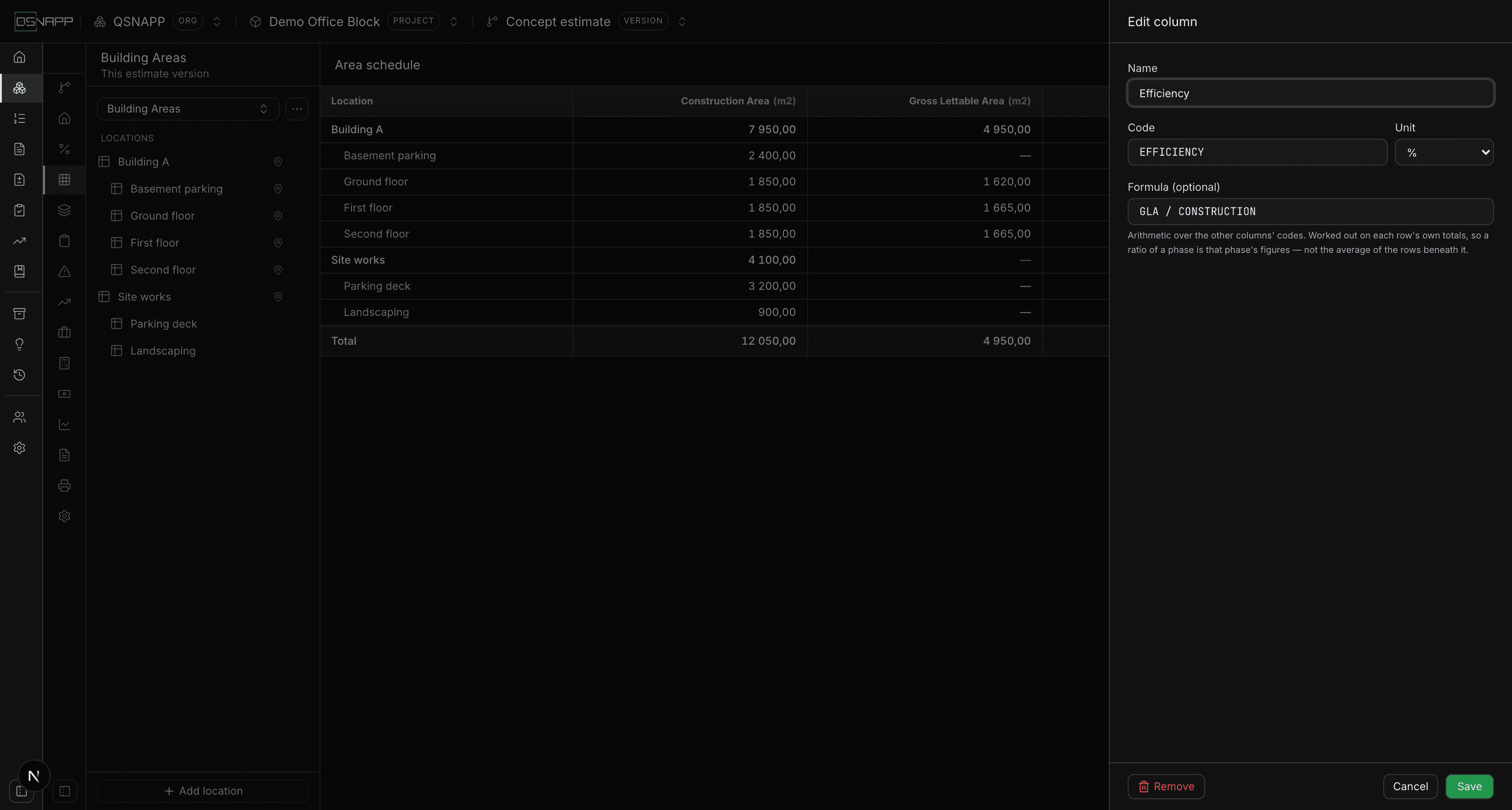
Give a column a formula and it is calculated instead of entered. Formulas are arithmetic over the other columns' codes — + - * / ( ) and numbers. Efficiency above is GLA / CONSTRUCTION.
A derived column is worked out on each row's own totals, after the roll-up. This is the part worth understanding. In the schedule above the three office floors are 87,6% and 90,0% efficient, but Building A is 62,3% — not the average of its floors, but its own lettable area over its own construction area. The basement has construction area and no lettable area, and that is exactly what drags the building's figure down. Averaging the floors would have hidden it.
A formula can only refer to measured columns, not to other derived ones. If a cell shows — in amber, the formula could not be worked out for that row — hover it to see why. The usual reasons are a column named in the formula that does not exist, or one that has not been measured on that row; a formula that divides by zero says so too.
A column whose unit is % is stored as a fraction and shown as a percentage, so GLA / CONSTRUCTION reads as 90,0% rather than 0,90.
The totals row
The totals row follows the same rule as any parent: measured columns are summed, then the derived columns are worked out on those totals. So the total efficiency is the whole project's lettable area over its whole construction area — 41,1% above — and it agrees with the rows above it rather than being calculated a second way.
More than one schedule
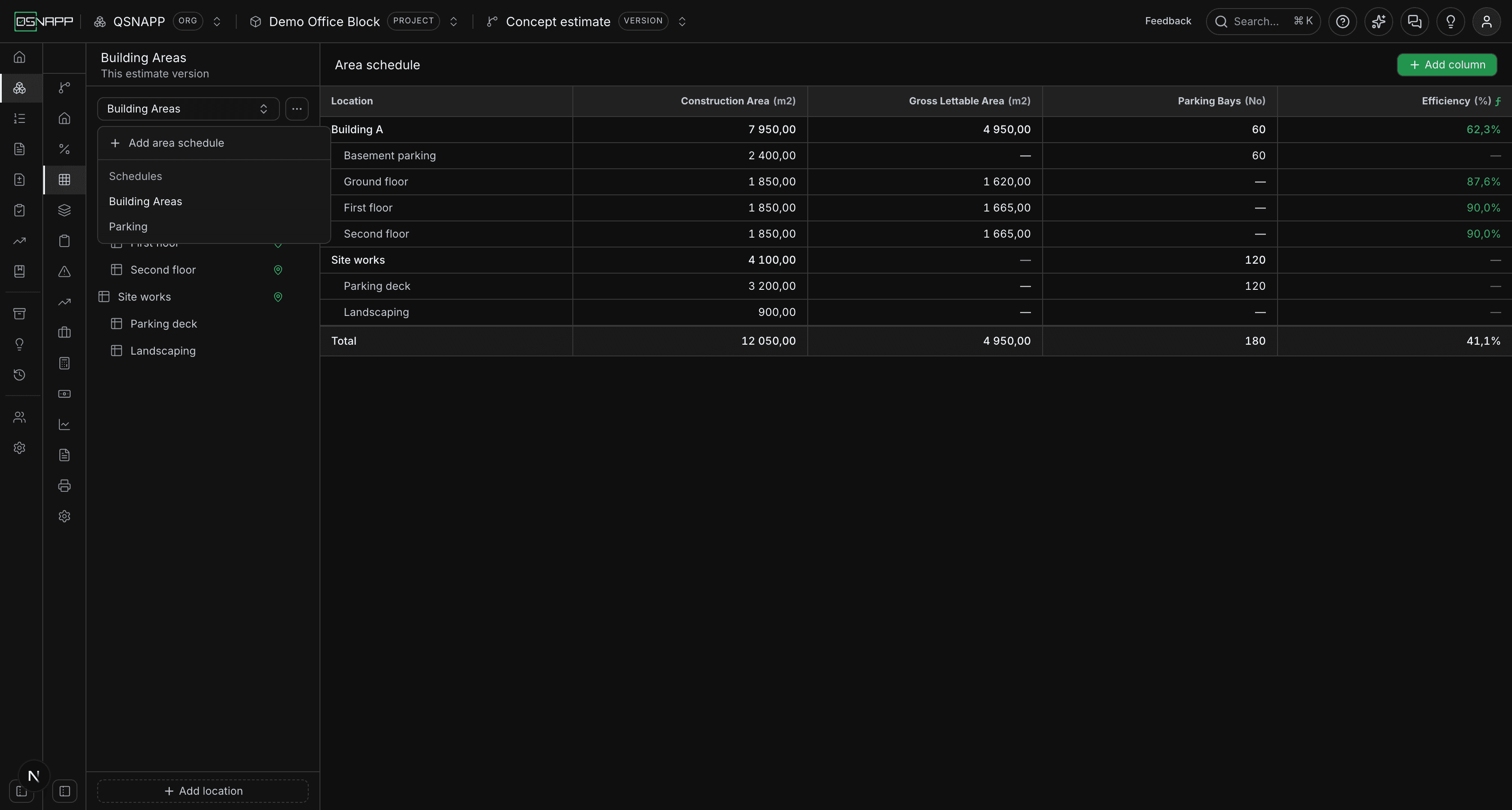
One tab can hold several schedules, each with its own locations and its own columns. That is the normal case, not an edge: a parking schedule counts bays and a building schedule measures m², and forcing them into one table would leave most of it blank.
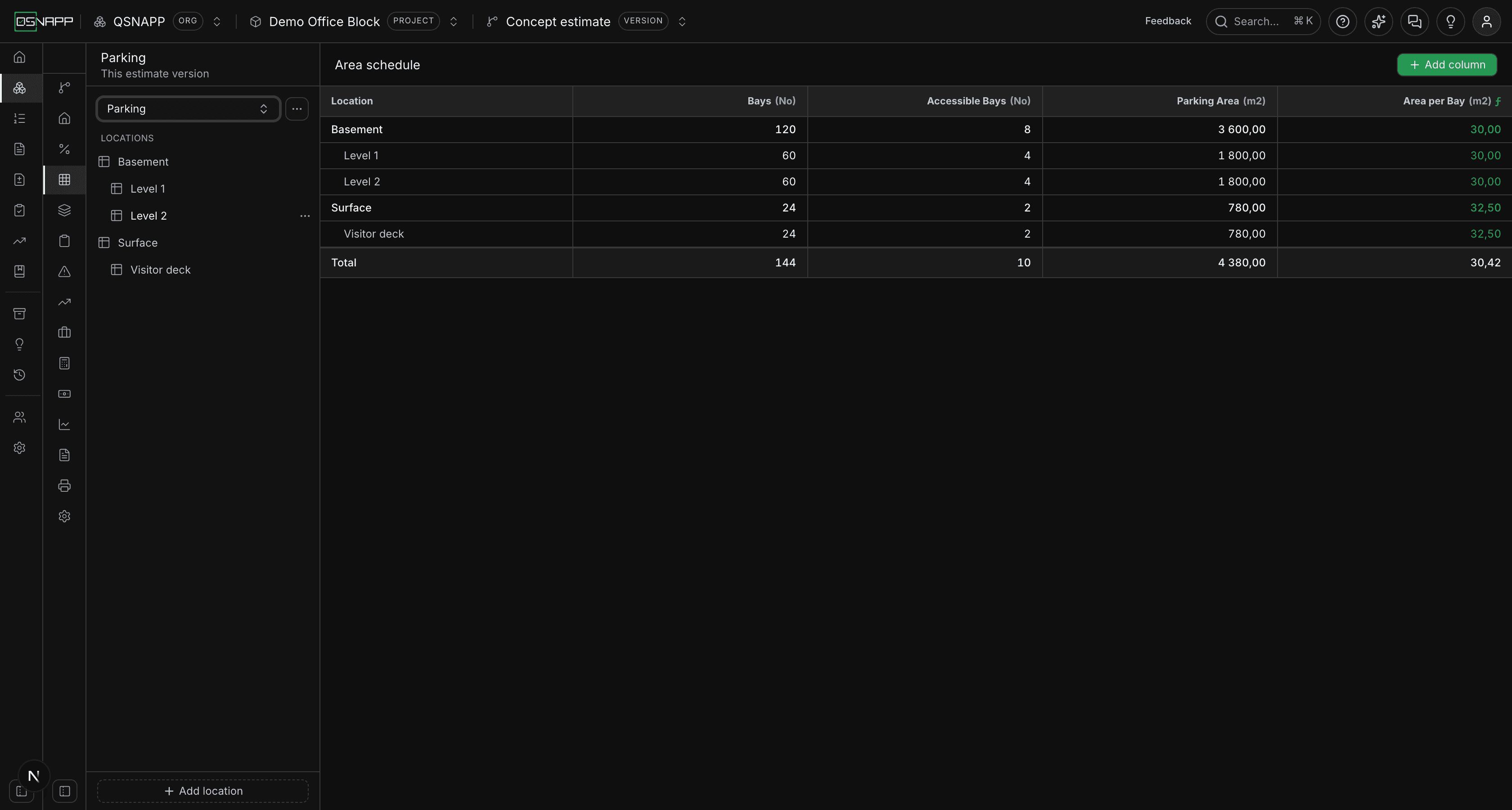
The two schedules above share a project and nothing else. Switching between them changes the whole column set, and neither shows the other's places.
Add one from the dropdown at the top of the rail. Each schedule covers a part of the project, and the name you give it also becomes a place in the project — which is how the schedules stay out of each other's way. The schedule's table starts one level down: it lists what is inside that place, rather than the place itself as a heading that repeats the schedule's name, and the totals row is that place's total.
A schedule made before schedules had a place of their own covers the whole project, less whatever the other schedules have claimed.
The first schedule
A version with no schedule yet says so, and offers Add an area schedule with the name Building Area filled in — change it if the project is not a building. A new schedule has no columns; the grid says which to add first, and stays empty until you do.
Renaming a schedule
The dots beside the picker rename or delete the schedule you are looking at. Renaming a schedule renames the place it stands for as well, so “Parking” does not become “Basement parking” in one table and stay “Parking” everywhere else.
Removing things
Deleting a schedule discards its columns and its figures. The places stay, because they belong to the project and other things may point at them — including the place the schedule was named after.
Removing a column — Remove, at the foot of its drawer — deletes the figures recorded in it for that schedule. Deleting a location is the one to be careful with — see above. All three ask first, and say what goes.
What the rest of the estimate reads
Everything that reads the schedule reads the figures — the number a cell came to — and works the roll-up and the derived columns out the same way this screen does, so a total printed elsewhere is the total shown here. Three things read it today:
- Return on investment.Every column's total is offered to its formulas under the column's own code —
GLA,CONSTRUCTION, whatever you called it. When two schedules share a code, each is offered with the schedule's name in front,BUILDING_AREAS_GLAandPARKING_GLA, rather than one being chosen for you. An income line can also be about one place, and then its area columns read that row rather than the totals. See the values you can name. - The printed report.The area schedule prints as one table per schedule, each with its own columns, its own rows and its own total — not one grid with a parking schedule's empty columns beside a building schedule's. Print & export lets you choose columns per schedule; untick all of a schedule's columns and that schedule is left out. The totals row, the indenting of nested places and the calculated columns are each an option.
- The elemental breakdown, where you ask it to. A measurement can be linked to a figure here — Building A's floor area for its floor finishes, the parking count for its line markings — so it is not typed twice. Nothing follows on its own: when a figure a measurement is linked to changes, including when a place is added inside a row and the row becomes the sum of what is under it, the estimate lists the measurements affected and you choose which to update.
Nothing is inferred. A component that is not linked states its own quantity — a footing length is not a floor area, and reading one from the other would be a guess dressed as a link.
Who can change what
Reading the schedule needs permission to view the project; changing it — places, columns and figures alike — needs permission to update the project, the same as the rest of the estimate. This screen does not hide its controls from a reader without that permission: a save is refused by the database and the refusal is shown, so nothing is silently lost.
An organisation whose trial has ended is read-only throughout, and that includes its area schedules and locations. They stay readable; changes are refused until the subscription is in place.